AI Employees
An AI employee is a named, role-aware agent you configure once and deploy across every channel. Each employee has its own knowledge base, defined behavior, capabilities, and connected channels. They appear as cards on your AI Workforce dashboard.
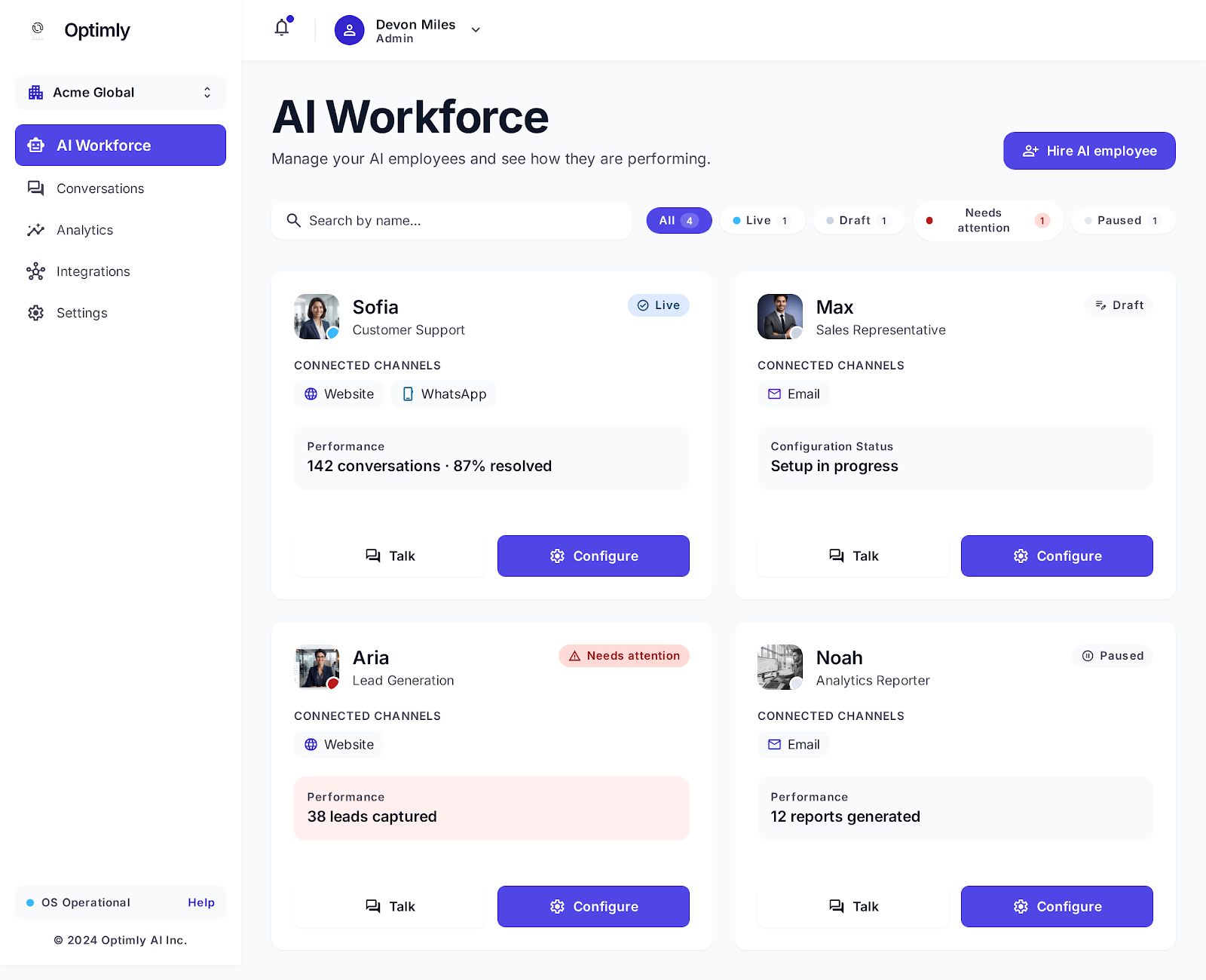
Employee lifecycle
Every employee moves through four states:
| Status | What it means | Who it affects |
|---|---|---|
| Draft | Not serving customers. Safe to configure, edit, and test. | Only your team (via Test Sandbox) |
| Live | Actively responding on all connected channels | Real customers |
| Paused | Channels go silent. Conversations queue but receive no reply. | Existing connected channels |
| Needs attention | Something requires your review — open the Activity tab to see what. | Live employee with a flag |
Moving between states
From the Deploy tab of any employee:
- Draft → Live: Click Publish. Your employee starts responding immediately.
- Live → Paused: Use the status toggle. Useful for maintenance or during business hours only.
- Live → Draft: Reverts to draft mode; all channels go dark.
- Any → Needs attention: Happens automatically when the system detects an issue (e.g., knowledge sync failure, channel disconnected). Check the Activity → Reports tab.
You can Test Sandbox at any time — even in Draft — to chat with your employee interactively. Use this to verify responses before going live.
What you configure per employee
Each employee has four tabs:
| Tab | What's here |
|---|---|
| Overview | Setup checklist, recommended next steps |
| Configure | Behavior · Knowledge · Capabilities · Colleagues · Appearance |
| Deploy | Visibility (Public/Private) · Channel connections · Embed code |
| Activity | Conversations · Leads · Outreach · Reports |
→ Full configuration reference
Roles
When hiring a new employee, you pick a role. The role pre-fills the behavior instructions — you edit from there.
| Role | Default purpose |
|---|---|
| Customer Support | Tier-1 questions, escalates to humans |
| Sales Representative | Qualifies prospects, explains your offering |
| Lead Generator | Captures and qualifies interested visitors |
| Analytics Reporter | Summarizes activity and recurring trends |
| System Auditor | Reviews activity for problems and opportunities |
| Custom Employee | Blank — you define everything |
The role label also shows under the employee's name in the workforce grid and in conversation logs.
Next steps
→ Hire your first employee — end-to-end flow
→ Configuration reference — every setting explained
→ Capabilities — lead capture, email handoff
→ Channels — where employees talk to customers