Capabilities
Capabilities are optional tools your AI employee can use during a conversation. They're the difference between an employee that answers questions and one that captures leads and routes complex cases to your team without missing a beat.
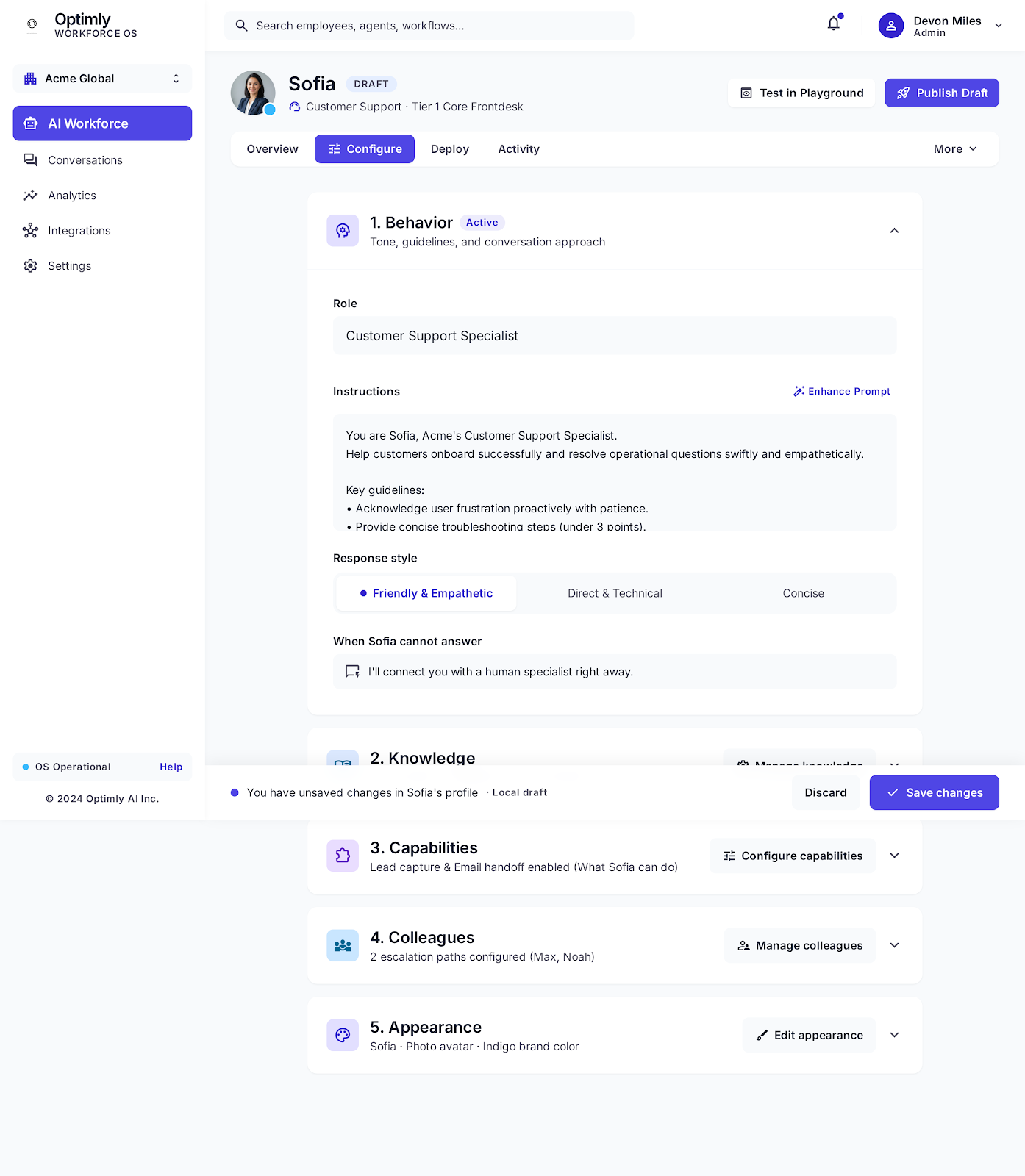
Open your employee → Configure tab → 3. Capabilities.
Lead capture
When lead capture is enabled, your employee collects contact information from visitors who show genuine interest — without interrupting the conversation with a clunky form.
Lead capture collects contact information (name, email, phone, preferred time). It does not connect to a calendar, block slots, or send confirmations. Your team still needs to call or email back to confirm.
If your goal is true appointment booking, you need a calendar integration via MCP (connecting a tool like Google Calendar or Calendly through an MCP server). Lead capture is the right starting point — just set expectations clearly with customers: "Our team will call you within X hours to confirm your appointment."
How it works
- The employee detects buying intent or explicit interest from the visitor's messages
- It naturally asks for contact details within the flow of the conversation
- The captured lead (name, email, phone, etc.) is stored and visible in Activity → Leads
- If you have outreach configured, the employee can follow up automatically
Configuring the lead form
In the Capabilities section, toggle Lead capture on. Then set:
| Field | Description |
|---|---|
| Fields to collect | Choose which contact fields to ask for: name, email, phone, company, custom fields |
| Required fields | Which fields must be filled before the lead is saved |
| Trigger message | What the employee says when it asks for contact info — or leave blank for the default |
Ask for email first. One field converts better than five. You can always collect more in follow-up.
Where leads appear
- Activity → Leads tab on the individual employee
- Conversations page — conversations with captured leads show a Lead Captured badge
- Analytics → the lead capture rate metric
Email handoff
Email handoff lets your employee transfer a conversation to a human inbox when the situation calls for it — a complex complaint, a high-value deal, anything that needs a real person.
How it works
- The employee decides to escalate (triggered by the visitor's request, a Colleagues escalation path, or when it can't answer)
- It sends a full conversation summary — with the full message thread — to your configured email address
- The visitor is informed: "I've connected you with our team — expect a reply within [X]."
- Your team replies from their normal email client
Configuring email handoff
Toggle Email handoff on. Then set:
| Field | Description |
|---|---|
| Destination email | Where handoff emails are sent (your support inbox, e.g. support@yourcompany.com) |
| Handoff message | What the employee tells the customer when handing off |
| Include transcript | Whether to attach the full conversation thread in the email (recommended: on) |
What the handoff email contains
- Customer's messages and the employee's responses (full thread)
- Customer contact info if lead capture fired earlier in the conversation
- Channel the conversation came from (Website, WhatsApp, etc.)
- Timestamp and employee name
Capabilities vs. Colleagues
Both features route conversations to humans — but they work differently:
| Email handoff | Colleagues | |
|---|---|---|
| Destination | An email inbox | A named person on your team |
| Trigger | Employee decides, or visitor requests | Defined rules per colleague (e.g. refund requests → Mark) |
| Visibility | Email thread only | Shows in dashboard conversations |
| Manual takeover | No — async handoff | Yes — teammate takes the dashboard toggle |
Use email handoff for async support. Use Colleagues for live escalation to a specific teammate.
Related
→ Colleagues — escalation paths
→ Manual Mode — taking over conversations
→ Activity tab — viewing leads