Colleagues
Colleagues are the human teammates your AI employee knows about. When a conversation exceeds what the employee can handle — a refund, a VIP, a legal question — it knows who to involve and how.
Open your employee → Configure tab → 4. Colleagues.
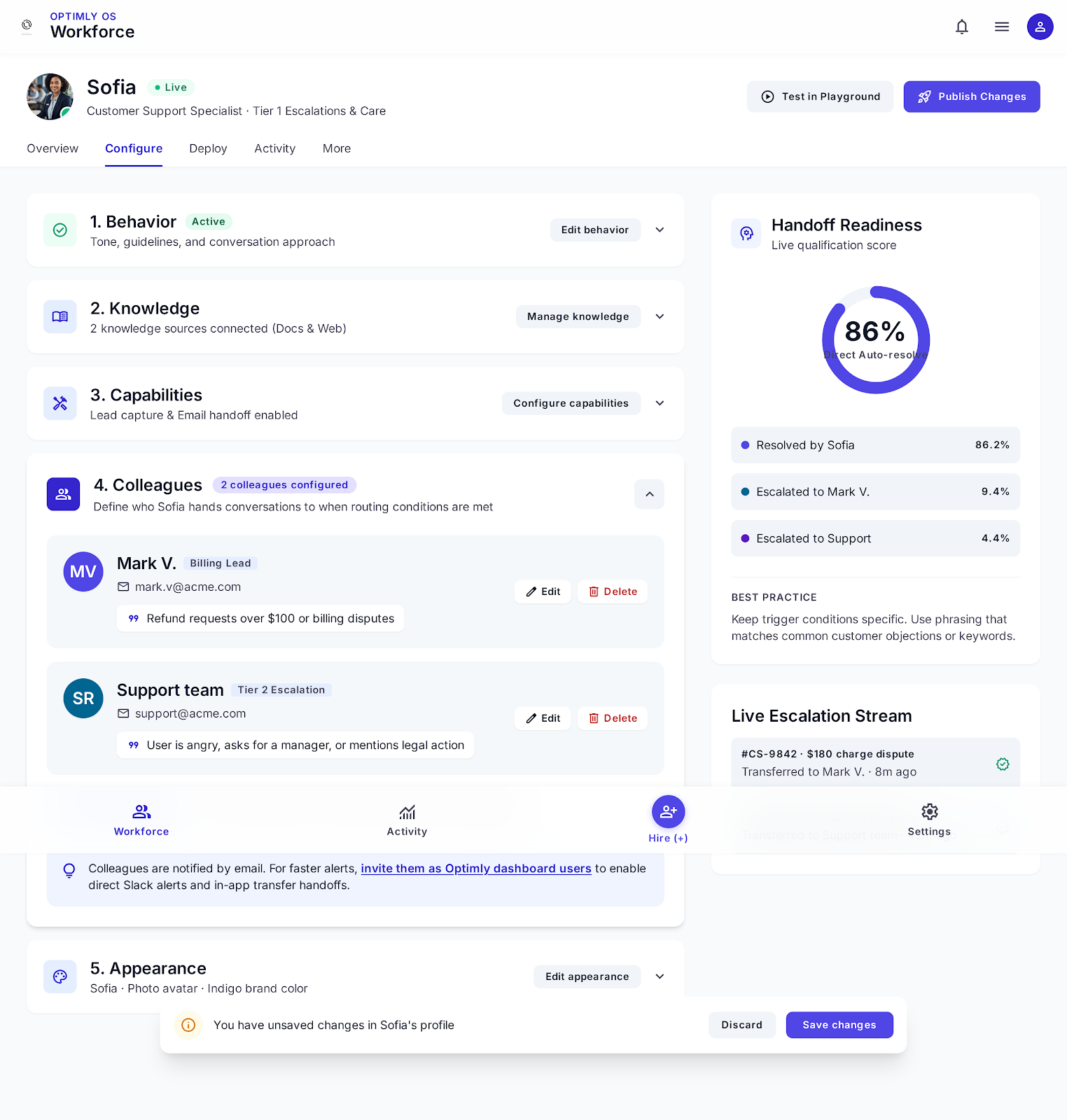
How colleagues work
Each colleague entry tells the employee:
- Who this person is — name and contact method
- When to involve them — the trigger condition in natural language
During a conversation, if the employee detects a situation matching a colleague's trigger, it:
- Tells the customer it's connecting them with a specific person
- Notifies that colleague (via the configured contact method)
- Flags the conversation in the dashboard
Your teammate can then open the conversation and toggle Manual Mode to take full control.
Adding a colleague
In the Colleagues section, click Add colleague and fill in:
| Field | Description | Example |
|---|---|---|
| Name | Shown to the customer when escalating | "Mark", "The billing team" |
| Contact | How Optimly notifies this person | Email address or Optimly dashboard user |
| Trigger condition | When to escalate to this person | "Refund requests over $100", "Mentions legal or compliance", "Enterprise accounts" |
You can add multiple colleagues. The employee picks the best match based on the conversation context.
The trigger condition is read by the LLM, not parsed as a rule. Write it the way you'd explain it to a new employee: "Escalate when the customer is angry and requesting a manager" works better than "sentiment = negative AND intent = escalation".
What the customer sees
When the employee escalates to a colleague, it tells the customer something like:
"I'm connecting you with Mark from our billing team — he'll be able to help you with this directly."
You can customise this message per colleague in the trigger settings.
What your colleague receives
If contact is an email address: Optimly sends an email with the conversation transcript and a link to open it in the dashboard. Delivery is typically within seconds, but check your spam filters — add notifications@optimly.io to your allowlist.
If contact is a dashboard user: They receive an in-app notification. They must have an Optimly login. This is more reliable for real-time escalation.
Email contact is simpler to set up, but in-app notifications are more visible. If your team doesn't check email quickly, create an Optimly login for your key staff members and use dashboard user contact for escalations.
What your teammate sees
- A notification (email or in-app, depending on contact method)
- The conversation appears in Conversations with an Escalated to Human badge
- Clicking in opens the full thread — they toggle Manual Mode to start replying
The employee steps back immediately when Manual Mode is on. One click returns control to the employee when the teammate is done.
Colleague vs. fallback message
| Colleague | Fallback message | |
|---|---|---|
| Set in | Configure → Colleagues | Configure → Behavior |
| Triggers | Specific conditions you define | Employee can't answer anything |
| Routes to | A specific named person | No one — just a message to the customer |
| Visible in dashboard | Yes — Escalated badge | No |
Use a fallback message as the safety net. Use colleagues for intentional routing.
Related
→ Capabilities — email handoff
→ Manual Mode
→ Conversations — activity view