Agent Configuration
Every AI employee in Optimly has four tabs: Overview, Configure, Deploy, and Activity. This page covers every setting inside Configure and Deploy.
The Configure tab
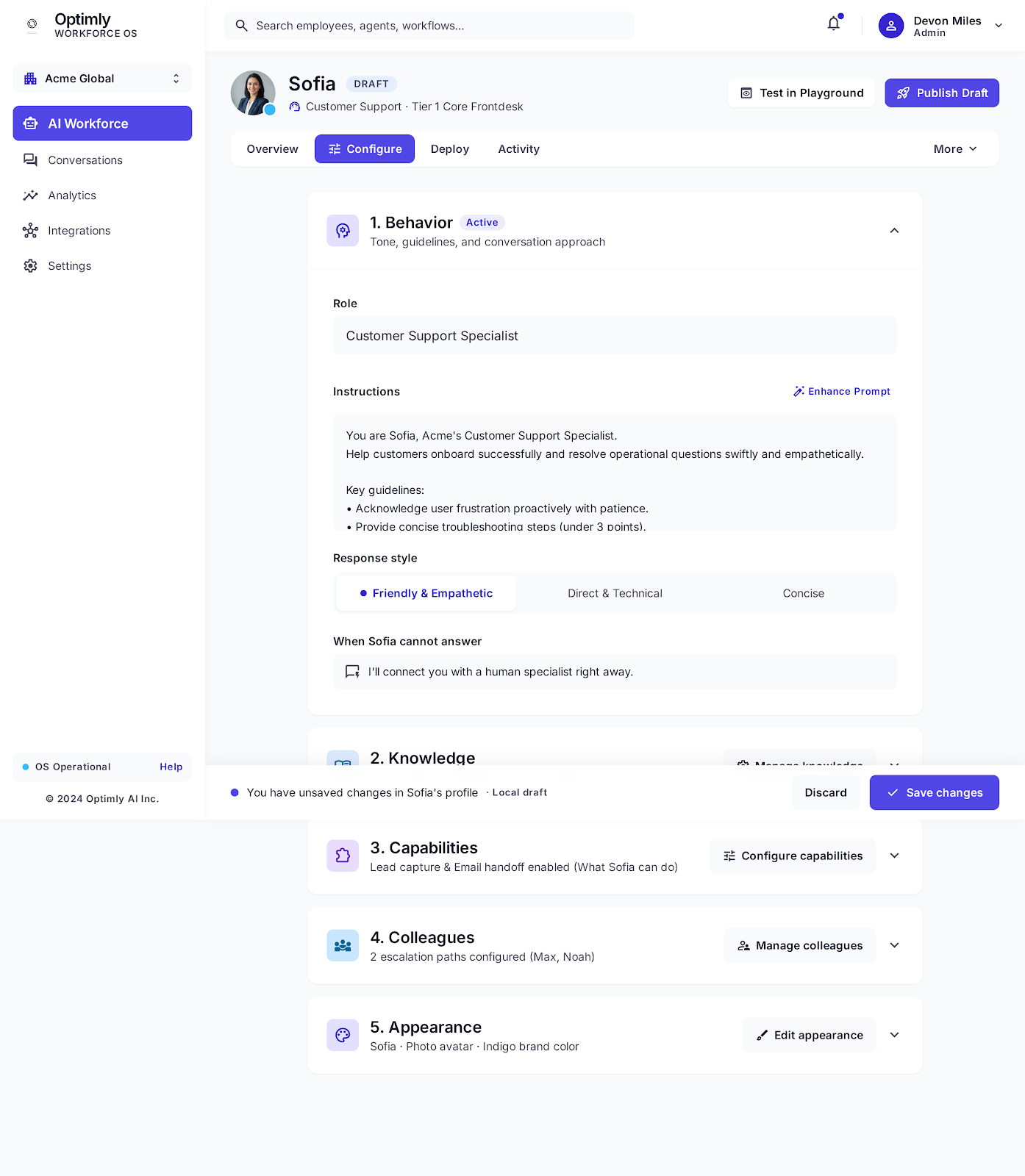
The Configure tab is split into five numbered sections. Changes are saved as a local draft until you click Save changes or Publish.
1. Behavior
Controls how your employee speaks and what to do when it gets stuck.
| Field | What it does |
|---|---|
| Role | A one-line label visible in your workforce dashboard (e.g. "Customer Support Specialist") |
| Instructions | The system prompt — the core directive your employee follows on every message |
| Response style | Pre-set tone: Friendly & Empathetic, Direct & Technical, or Concise |
| When employee cannot answer | Fallback message shown to customers when no knowledge matches and the LLM is restricted |
Writing good instructions
Keep instructions action-oriented. Specify what the employee should do, not just what it is:
You are Sofia, Acme's Customer Support Specialist.
Help customers onboard successfully and resolve operational questions swiftly and empathetically.

Key guidelines:
- Acknowledge user frustration proactively with patience.
- Provide concise troubleshooting steps (under 3 points).
- If you cannot resolve the issue, say so clearly and offer to connect them with a human.
Enhance Prompt — there's an AI-assisted prompt editor (the ✨ button next to Instructions) that rewrites your prompt to be clearer and more effective.
2. Knowledge
Your employee answers questions from the content you add here. Without knowledge, it can only use its general training.
Supported sources:
| Source type | How to add |
|---|---|
| Documents | Upload PDF, DOCX, or TXT files |
| Website | Paste a URL — Optimly crawls the page or full site |
| Manual text | Paste content directly (great for FAQs, policies, pricing) |
Restrict responses to knowledge — toggle this on (in Settings → Sharing) to make the employee refuse to answer anything not found in its knowledge base. Pair it with a clear fallback message.
When your pricing or policies change, update the knowledge source. Stale content is the most common cause of wrong answers.
3. Capabilities
Capabilities are tools your employee can use during a conversation.
| Capability | What it does |
|---|---|
| Lead capture | Presents a form to collect visitor contact information when the time is right |
| Email handoff | Transfers the conversation thread to a human inbox |
Enable a capability by toggling it on in this section, then configure the details (form fields for lead capture, destination address for email handoff).
4. Colleagues
Define escalation paths — human team members your employee can hand conversations over to.
Each colleague entry has:
- Name — shown to the customer ("Handing you over to Mark V.")
- Contact — how Optimly routes the escalation (email or notification)
- Trigger condition — when to escalate (e.g., refund requests, VIP customers)
An employee without colleagues configured will use the fallback message from Behavior when it can't answer.
5. Appearance
Cosmetic settings for the employee.
| Setting | Options |
|---|---|
| Avatar | Photo upload or auto-generated initials avatar |
| Brand color | Hex color used in the widget and employee card |
The name shown in the widget matches the Employee name set during the hiring flow. Change it via the employee's header (click the name).
The Deploy tab
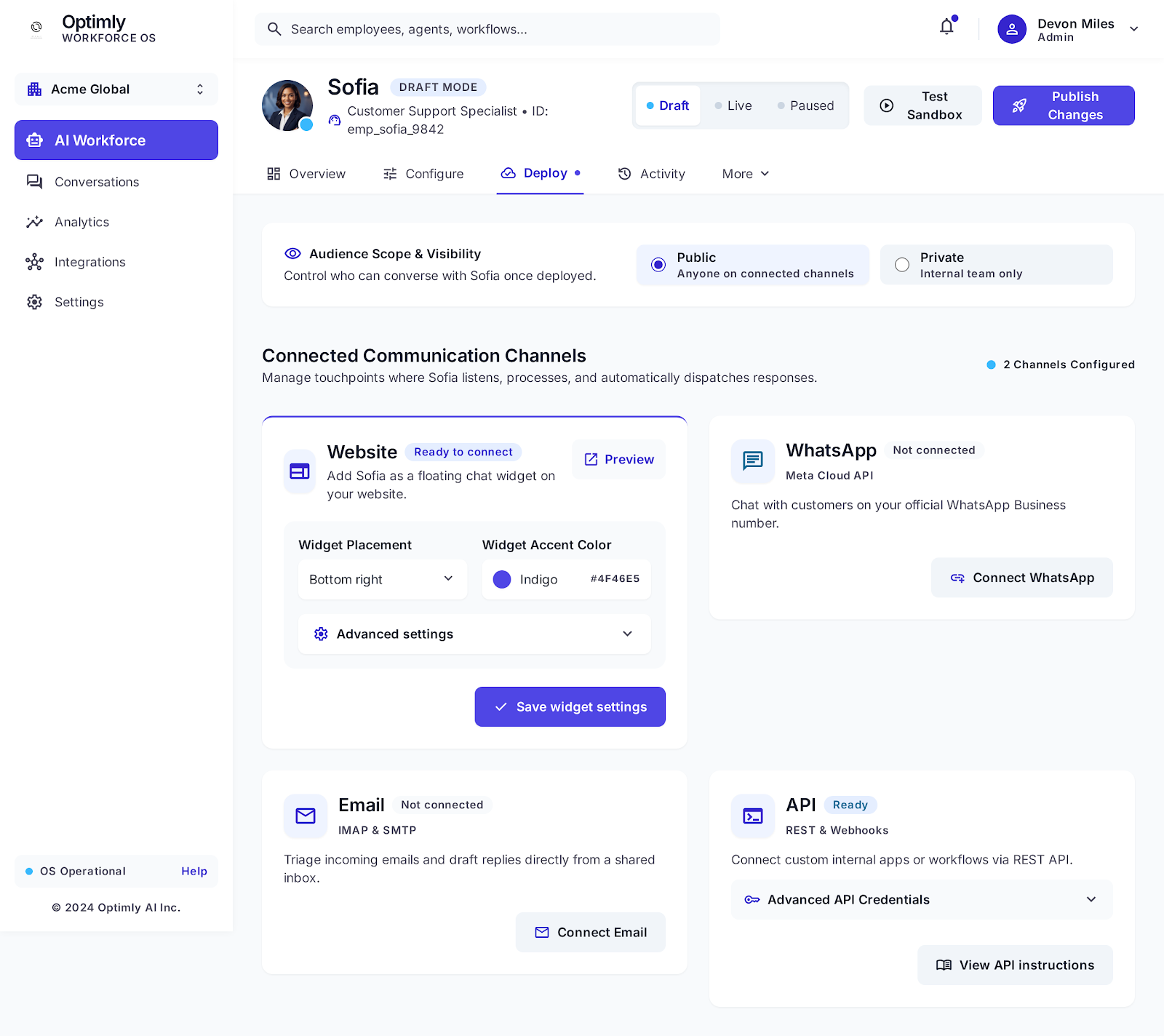
Audience scope
| Option | Who can talk to this employee |
|---|---|
| Public | Anyone on the connected channels |
| Private | Internal team only |
Private employees are useful for internal tools or testing before a public launch.
Connected channels
Website widget
Adds a floating chat bubble to your website.
| Setting | Description |
|---|---|
| Widget placement | Bottom right (default), bottom left, top right, top left |
| Widget accent color | Hex color for the bubble and send button |
After saving widget settings, grab the embed script from Advanced settings:
<script
  src="https://widget.optimly.io/widget.js"
  data-agent-id="YOUR_AGENT_ID"
  async
></script>
Paste this before the closing </body> tag on every page you want the widget to appear.
Allowed origins — restrict which domains can load your widget. Leave blank to allow all. Set https://yoursite.com to prevent the widget from being embedded on other domains.
WhatsApp
Connects your employee to your WhatsApp Business number via OpenWA.
- Click Connect WhatsApp
- Follow the QR code pairing flow in the integrations modal
- Once connected, your employee responds automatically to incoming WhatsApp messages
Email
Connects a shared support inbox. Your employee reads incoming emails and drafts replies.
- Click Connect Email
- Provide IMAP and SMTP credentials for your support inbox
- Your employee processes new emails and sends replies from that address
API
Use the REST API to send messages to your employee from any application.
- Expand Advanced API Credentials to get your
access_token - See the External API reference for full endpoint docs
Quick example — send a message:
curl -X POST https://api.optimly.io/external/agent \
  -H "Authorization: Bearer YOUR_ACCESS_TOKEN" \
  -H "Content-Type: application/json" \
  -d '{
    "chat_id": "chat_abc123",
    "content": "Hello, I need help with my order"
  }'
Status lifecycle
| Status | What it means |
|---|---|
| Draft | Not serving customers. Safe to configure and test. |
| Live | Actively responding on all connected channels |
| Paused | Channels are silent; conversations queue up but get no response |
| Needs attention | Something requires your review (check the activity tab) |
Use the Draft / Live / Paused toggle in the Deploy tab header to change status. You can also Test Sandbox at any time — even in Draft — to chat with your employee interactively before publishing.
Manual Mode
Any live conversation can be handed to a human.
- Go to Conversations in the left sidebar
- Open any conversation
- Toggle the Manual/AI switch at the top of the chat
While in Manual Mode:
- Your employee stops responding automatically
- Your team types and sends messages directly
- A badge in the conversation list shows the conversation is in manual control
Toggle the switch back to return control to your employee.