Conversations
The Conversations page is where you monitor everything your AI employees are handling in real time. It's a split-panel view: a searchable list on the left, the full conversation thread on the right.
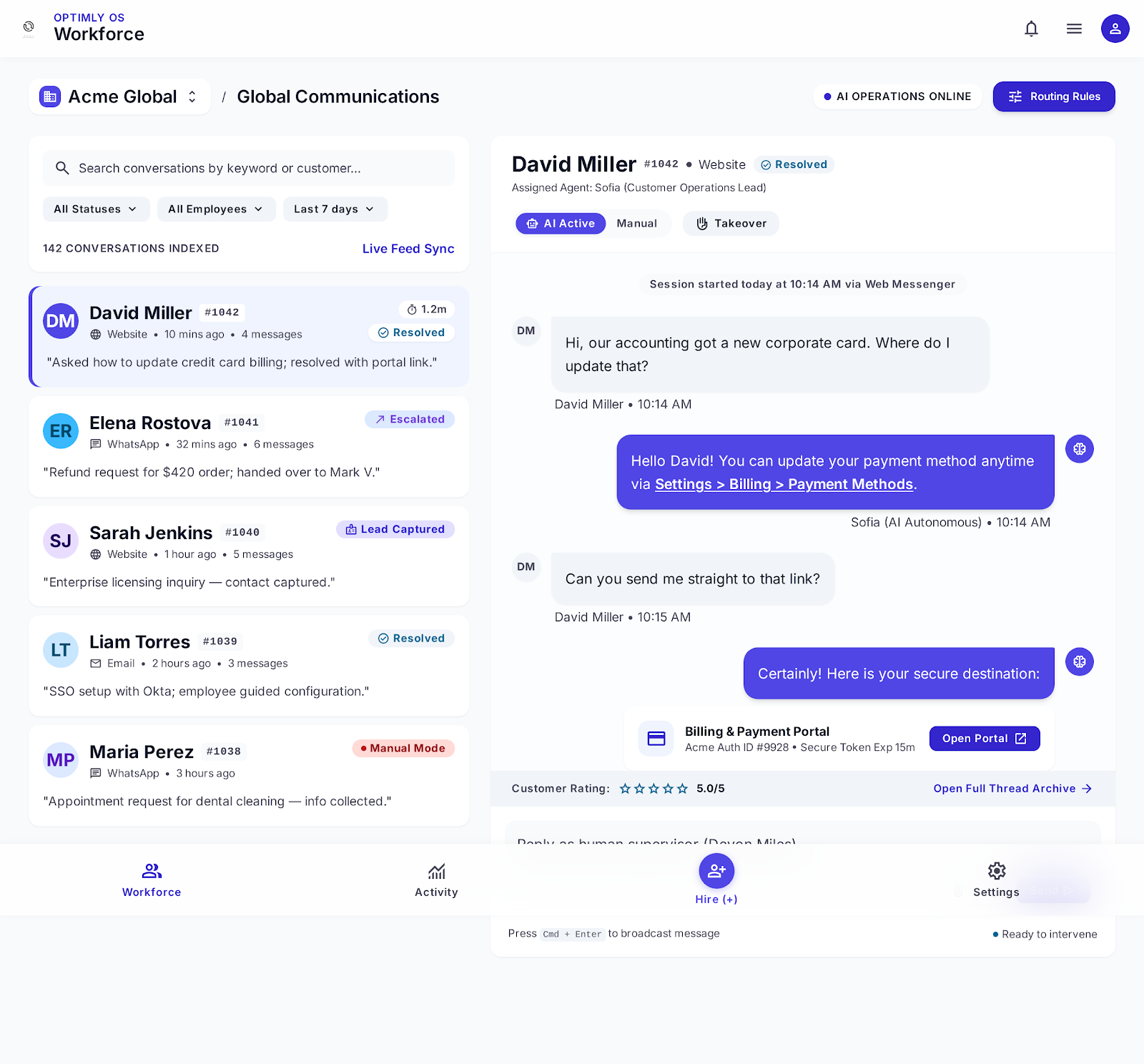
The conversation list
The left panel shows every conversation across all your employees and channels. Each row shows:
- Customer identifier — name if captured, otherwise their ID or number
- Channel — Website, WhatsApp, Email Support
- Time and message count — when it started, how many messages
- Status badge — what happened in this conversation
- Summary — a one-line AI-generated description of what was discussed
Conversation statuses
| Badge | Meaning |
|---|---|
| Resolved | Conversation ended, customer's question was answered |
| Escalated to Human | Employee handed off to a teammate (via Colleagues) |
| Lead Captured | A lead form was completed in this conversation |
| Active | Conversation is open and the employee is responding |
| Manual Mode | A teammate has taken over — AI is paused |
Filtering and search
- Search bar — search by keyword, customer name, or message content
- All Statuses dropdown — filter by any status badge
- Date range — filter to last 7 days, 30 days, or a custom range
- Employee filter — show conversations for one employee only
The conversation detail
Click any conversation to open the full thread on the right:
- Full message history — every message from the customer and every response from the employee, in order
- Channel and timestamp per message
- Customer rating — if the customer left feedback (⭐ 1–5)
- Open Full Thread — opens the conversation in full-screen mode
- AI/Manual toggle — switch control between your employee and your team
Taking manual control
Any conversation can be taken over instantly:
- Open the conversation
- At the top of the thread, click Manual (switches from AI Active → Manual Mode)
- The badge on the conversation row changes to Manual Mode (orange)
- Your team types and sends messages directly — the employee is silent
- Click AI Active to return control to the employee
The customer sees no interruption — the conversation continues seamlessly.
The employee's full context is preserved while you're in Manual Mode. When you hand back, it picks up exactly where the conversation left off.
Leads tab
Switch to the Leads tab at the top of the Activity section to see only conversations where a lead was captured. Each lead shows:
- Contact information collected (name, email, phone)
- Which employee captured it and on which channel
- The conversation that generated the lead
- Timestamp and any company/title info
Conversation from the employee's Activity tab
You can also view conversations scoped to one employee. Open any employee → Activity tab → Conversations. This shows the same split-panel view but filtered to that employee only, making it easier to review how a specific employee is performing.
Related
→ Manual Mode — full guide
→ Capabilities — lead capture
→ Analytics overview