WhatsApp AI Agents: The Complete Setup and Analytics Guide (2025)

Email open rates hover around 20%. WhatsApp messages open at 98%.
That gap explains why businesses across e-commerce, real estate, healthcare, and financial services are deploying AI agents on WhatsApp rather than building yet another website widget. When your customers already live in WhatsApp, meeting them there isn't a nice-to-have — it's a distribution advantage.
But WhatsApp AI agents present a distinct set of challenges that don't exist in web chat. The conversation context is persistent across sessions. The medium is intimate — it's where people talk to their friends. The stakes for a bad message are higher, because users can block you with one tap and never return.
This guide covers how to deploy a WhatsApp AI agent that your customers actually want to interact with, how to measure whether it's performing, and the specific mistakes that cause WhatsApp deployments to fail.
Why WhatsApp Changes the AI Agent Equation
Most AI agent deployments treat WhatsApp as "web chat, but on a phone." That's wrong in a way that matters.
Sessions don't expire. A web chat window closes, and the next visit starts fresh. WhatsApp conversations are persistent — the history is always there. A customer who contacted your agent three months ago about a delivery issue and contacts you again today can reference that history. Your agent should too.
The medium carries intimacy expectations. Users interact with WhatsApp in the same space where they talk to family and friends. Overly corporate language, scripted responses, and obvious automation create dissonance. The bar for sounding human — or at least natural — is higher.
Opt-in is earned, not assumed. A website chat widget appears because the visitor is already on your website. WhatsApp requires an explicit opt-in: the user has to save your number and initiate a conversation, or click a link that pre-populates a message. That opt-in represents genuine intent — which means every interaction that disappoints it is a harder loss than a bounce from a website widget.
Media and rich content work differently. WhatsApp supports images, voice notes, PDFs, and location sharing in ways that web chat doesn't. A well-configured WhatsApp AI agent can send product images, invoices, instruction PDFs, or ask the user to share a photo of a defective item. These capabilities change what your agent can do.
Architecture: How a WhatsApp AI Agent Works
Before configuration, it helps to understand the plumbing.
A WhatsApp AI agent sits between the WhatsApp messaging infrastructure and your AI platform. When a user sends a message, it travels to your server via webhook, gets processed by the AI model, and a response is sent back through the WhatsApp API.
Optimly connects to WhatsApp through the OpenWA integration layer, which handles:
- Receiving inbound messages and media
- Maintaining session state across the persistent WhatsApp thread
- Sending text, images, PDFs, and formatted messages
- Triggering alerts for Manual Mode takeovers
- Logging all messages to the Optimly conversation analytics backend
The AI model — whichever LLM you've configured in your agent settings — processes the message and generates a response. The response goes back through OpenWA to the user's WhatsApp thread, typically in under two seconds.
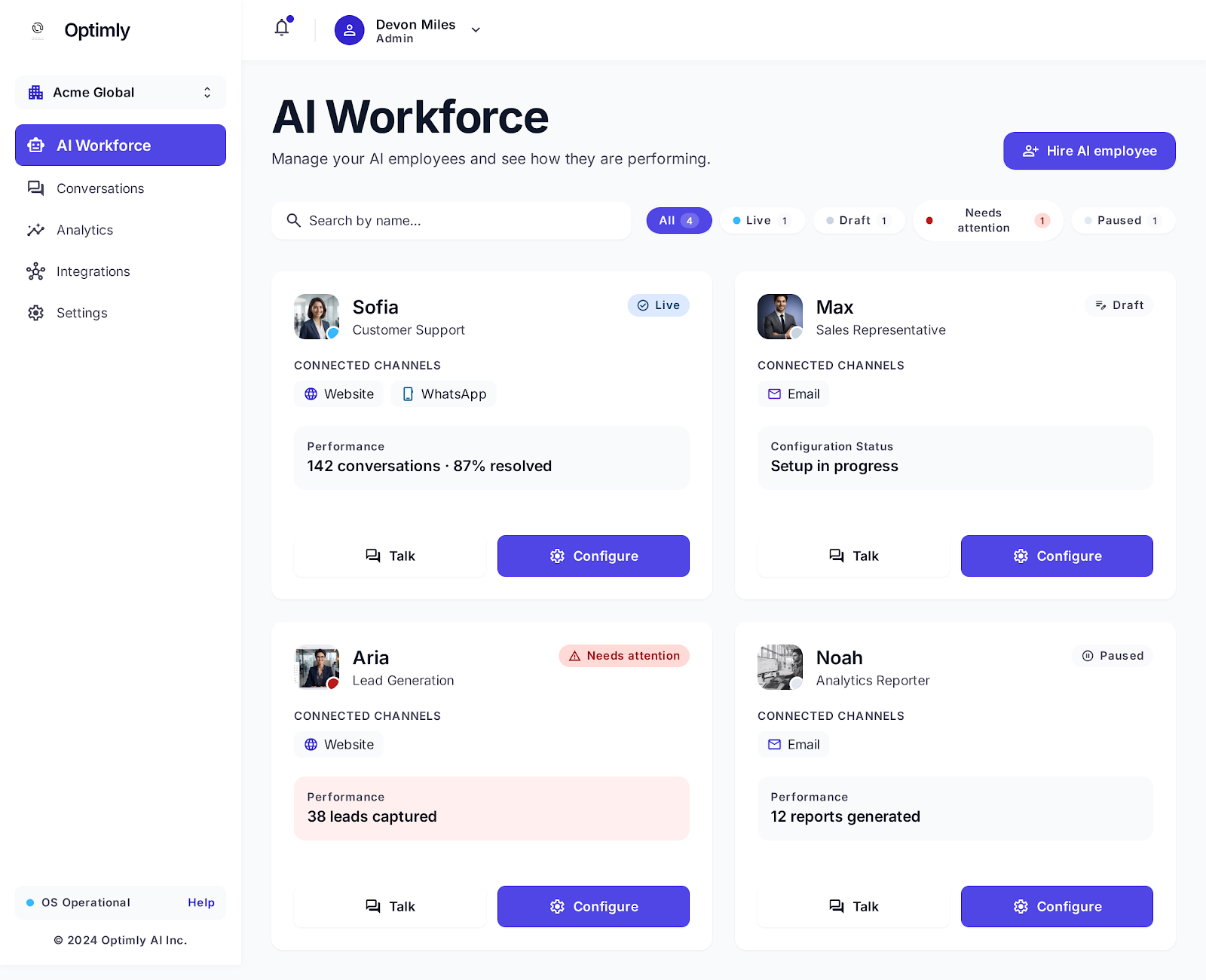
The AI Workforce dashboard shows all your agents at a glance. Sofia runs live on Website and WhatsApp simultaneously — both channel tags appear on her card. Adding a channel doesn't require a new agent, just a new deployment target.
Setting Up Your WhatsApp AI Agent
Step 1: Configure your Optimly agent
Before connecting to WhatsApp, configure your AI agent in Optimly. This means:
- Writing the system prompt that defines your agent's persona, scope, and escalation behavior
- Loading your knowledge base (product documentation, FAQs, pricing, support runbooks)
- Setting escalation rules — what topics should trigger a Manual Mode alert
- Defining lead capture conditions if your agent is customer-facing
Your WhatsApp agent will behave exactly as configured in Optimly — the WhatsApp channel is just the interface, not the intelligence.
Step 2: Connect the WhatsApp channel
In Optimly, navigate to Agent Settings → Channels → WhatsApp. Connect your WhatsApp Business number through the OpenWA integration. You'll need:
- A WhatsApp Business account (or a regular number you're willing to dedicate to this use case)
- Access to the phone for initial QR code pairing
Once connected, Optimly will show the connection status, the number of active sessions, and whether the webhook is receiving messages. A green status indicator means the pipeline is live.
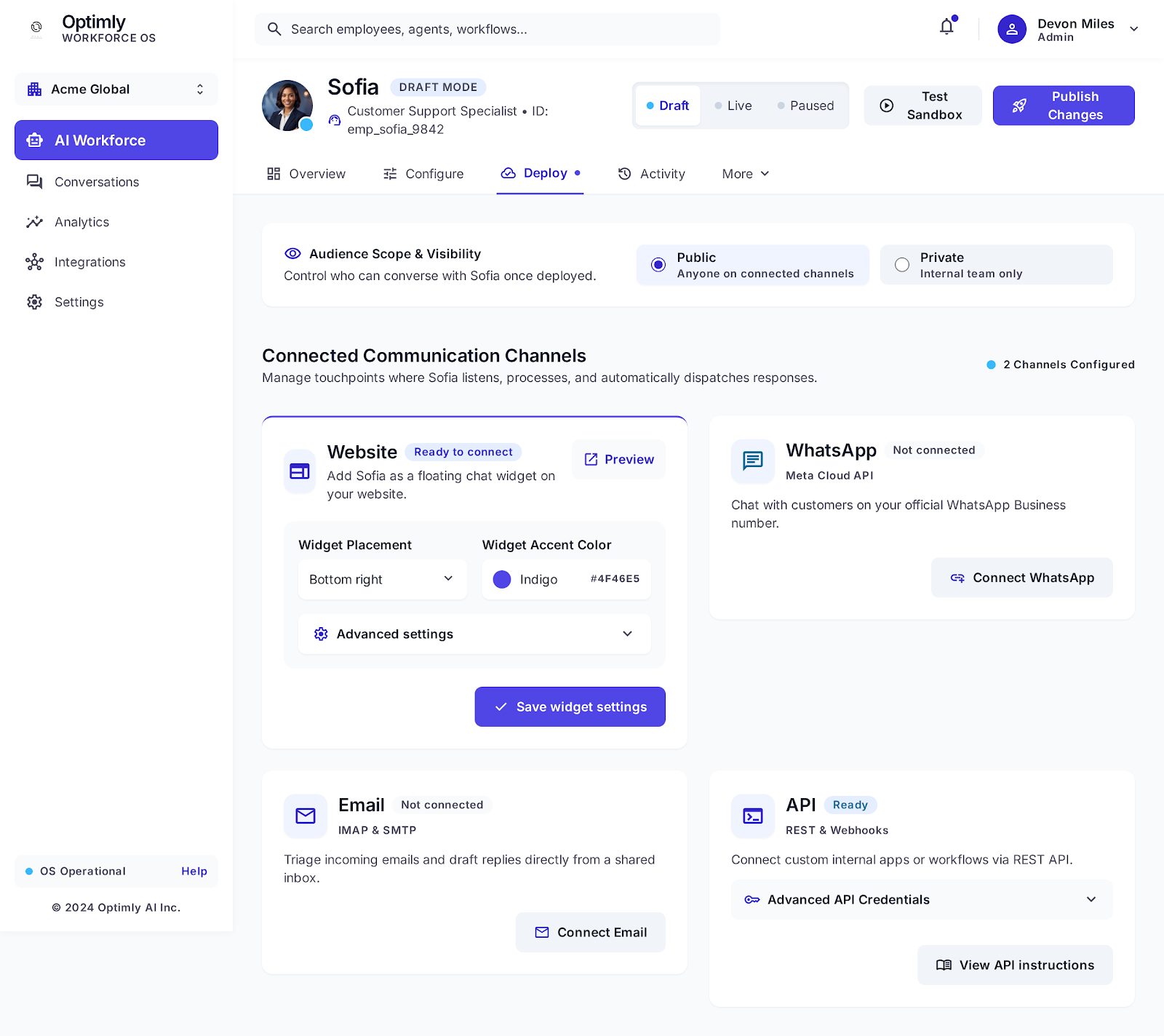
The Deploy tab: the Website channel is fully configured — placement, brand color, allowed domains, and embed script all in one card. The WhatsApp card sits right next to it. One click to begin the pairing flow, same configuration interface.
Step 3: Configure WhatsApp-specific behavior
WhatsApp has behavioral norms that don't apply to web chat. Configure these in your channel settings:
Typing indicators. Send a "typing..." signal before each response. This makes the interaction feel more natural and sets response time expectations. A message that appears instantly after a user sends theirs can feel robotic.
Message delay. Add a small, variable delay (0.5–2 seconds) before sending each response. Combined with typing indicators, this creates a rhythm that feels like a real conversation rather than an automated response system.
Read receipts. WhatsApp shows double blue ticks when a message is read. Your agent should mark messages as read immediately on receipt — this signals responsiveness and is the norm in WhatsApp conversations.
Media handling. Configure how your agent handles inbound images, voice notes, and documents. At minimum, it should acknowledge them and explain whether it can process them. If your use case includes image-based support (e.g., a user sending a photo of a product defect), configure the vision model and instructions for handling visual input.
Step 4: Write a WhatsApp-native system prompt
The system prompt you'd use for a website chatbot needs adaptation for WhatsApp. Specific considerations:
Tone. Conversational, warm, and brief. WhatsApp messages are naturally shorter than chat widget exchanges. Long, formal responses feel out of place.
Session context. Your prompt should instruct the agent to reference previous conversation history when relevant. "You mentioned last week that you were having trouble with [X]" creates the kind of continuity that makes WhatsApp AI agents feel genuinely intelligent rather than amnesiac.
Opt-out instructions. Your prompt should include instructions for how the agent handles opt-out requests ("don't contact me," "remove me," "stop"). The agent should acknowledge these immediately, log them, and trigger the appropriate action — not attempt to re-engage.
Business hours logic. If your team only covers Manual Mode during certain hours, the agent should know this and set expectations accordingly: "Our team reviews flagged conversations weekdays 9am–6pm EST — I'll make sure this gets to them first thing tomorrow."
What to Measure on WhatsApp (and What's Different)
Standard chatbot analytics apply to WhatsApp — response rate, resolution rate, escalation rate, lead capture rate — but several metrics are unique to the channel.
Conversation restart rate
Unlike web chat, WhatsApp users can pick up a conversation days or weeks after the last message. Conversation restart rate — the percentage of threads that receive a new message after more than 24 hours of inactivity — tells you how many users are returning to continue a relationship with your agent rather than having a one-off interaction.
A high restart rate is a strong signal that users find the channel genuinely useful. A low restart rate suggests they had a single interaction and moved on — the agent isn't becoming part of their communication habits.
First-message response time
Web chat users expect near-instant responses. WhatsApp users also expect fast responses — but the tolerance window is slightly wider, especially for inbound business inquiries. However, if you're running a WhatsApp customer support deployment and your agent takes more than a few seconds to respond, you'll see higher abandonment rates than on web.
Measure median and p95 response times separately. A good median with a high p95 (some messages taking 10+ seconds) is often a sign of cold-start latency on the AI model — worth investigating.
Opt-out and block rate
WhatsApp gives users a nuclear option: block the number entirely. A block means no future communication is possible through that number. Tracking your block rate is critical — a sustained elevated block rate means your agent is failing at something fundamental: sending unwanted messages, failing to resolve issues, or being perceived as spam.
Block rate above 1% of active conversations should trigger immediate investigation.
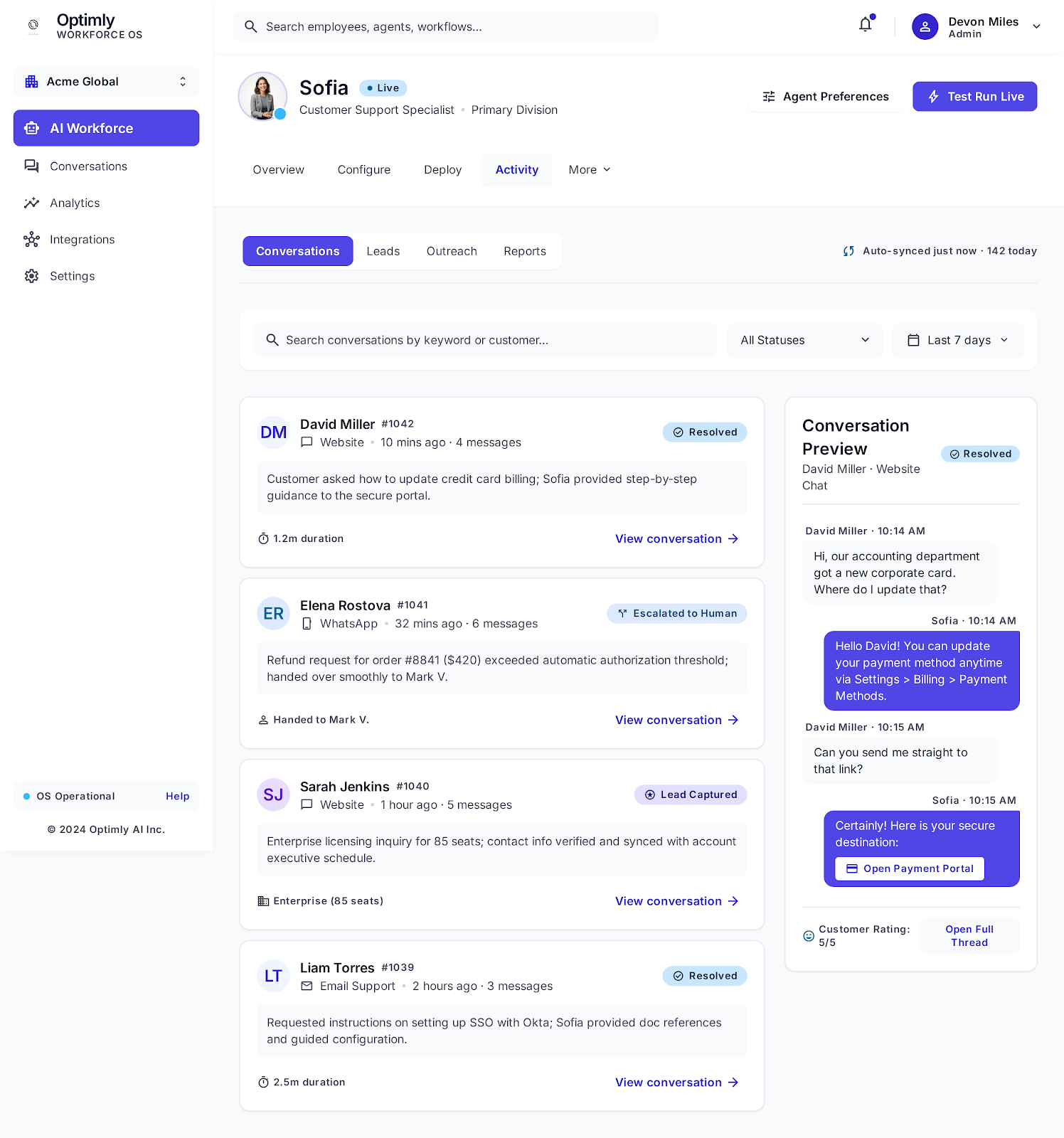
Optimly's activity feed shows conversations across all channels in a single view. Elena Rostova's thread shows "WhatsApp" as the source channel and "Escalated to Human" as the outcome — refund above threshold, context passed to Mark V. intact. This is the audit trail that makes WhatsApp deployments reviewable.
Media interaction rate
If you're sending images, PDFs, or other rich media, track whether users engage with them. A product catalog image that no one opens isn't delivering value. An order confirmation PDF that users view immediately is.
WhatsApp delivery reports tell you whether a message was delivered and read — but Optimly can track click-through on links within messages and estimate whether attachments were engaged with based on subsequent conversation behavior.
The Manual Mode Opportunity on WhatsApp
WhatsApp's persistent, intimate nature makes Manual Mode especially powerful — and especially consequential.
On web chat, a human stepping into a conversation is a support interaction. On WhatsApp, it's closer to a personal relationship. Users who have a positive experience with a human agent taking over a WhatsApp conversation have some of the highest retention and repeat-purchase rates of any customer segment, across industries.
The flip side: a human stepping in at the wrong time, with the wrong tone, or without reading the conversation history is more damaging on WhatsApp than on any other channel. The intimacy of the medium amplifies both positive and negative experiences.
Configure Manual Mode for WhatsApp with these trigger conditions at minimum:
- Explicit request for human contact
- Messages expressing strong frustration or negative sentiment
- High-value account inbound (requires CRM integration)
- Purchase or high-stakes decision in progress
- Any message the AI marks as "unable to answer confidently"
When a Manual Mode alert fires, the agent on your team who takes over is representing your brand in someone's WhatsApp thread. Train for it accordingly.
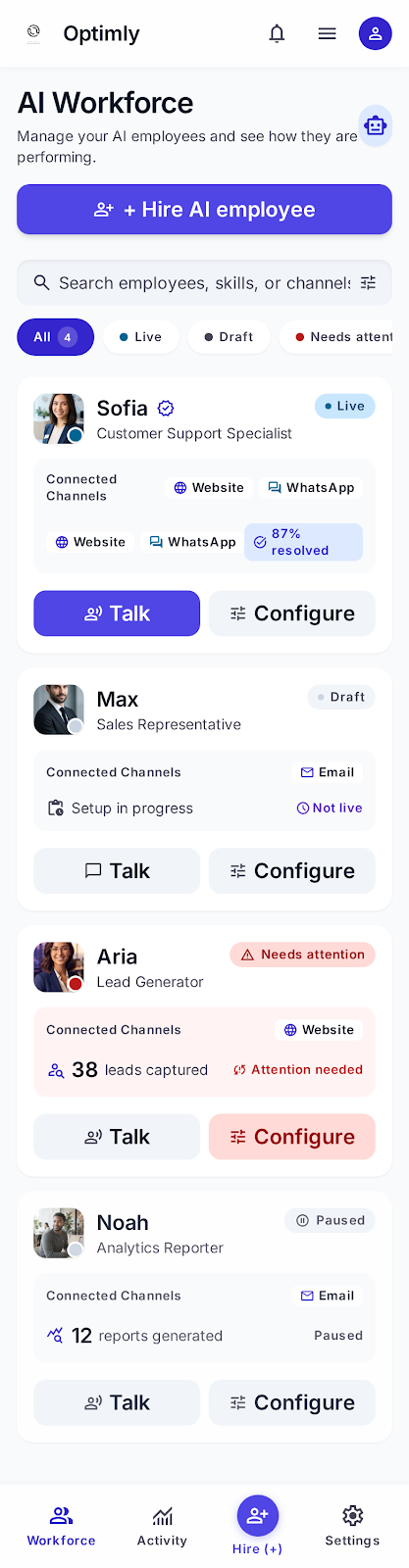
The Optimly mobile view: Sofia's card shows her Live status with both active channels (Website + WhatsApp) and an 87% resolution rate. The same configured agent runs across both channels — no duplicate setup.
Common WhatsApp AI Agent Mistakes
Outbound message blasts
WhatsApp is not an email list. Sending unsolicited promotional messages to your contact list through your AI agent number is the fastest path to mass blocks and potential platform ban. Keep your agent's number strictly inbound — inbound inquiries only — and use separate, compliant channels for outbound campaigns.
Not handling media gracefully
Users on WhatsApp naturally share images, voice notes, and documents. An AI agent that responds "I cannot process that file type" to every inbound image looks broken. At minimum, your agent should acknowledge the media, explain what it can and can't process, and offer an alternative path ("Could you describe what you're seeing?" for images the agent can't analyze).
Identical persona to the website chatbot
Your website chatbot can be formal. Your WhatsApp agent should not be. Same intelligence, different voice. Users will disengage from corporate-speak on WhatsApp in a way they tolerate on a product support page.
No clear scope boundaries
WhatsApp users will ask your business agent anything. Medical advice, unrelated product recommendations, personal questions. Your agent needs a politely firm out-of-scope response that redirects without being dismissive. Define what your agent does and doesn't do, and include those boundaries explicitly in the system prompt.
Ignoring the conversation history
A returning user who has to re-explain their situation from scratch has a bad experience. Configure your agent to explicitly reference conversation history when it's relevant — and to check for relevant prior context before assuming a conversation is starting fresh.
WhatsApp AI in Practice: What Good Looks Like
A furniture retailer deploys a WhatsApp AI agent for post-purchase support. A customer who ordered a wardrobe messages the number to ask about delivery status.
The agent:
- Identifies the customer by phone number (matched to the CRM record from purchase)
- Pulls the order status via API integration
- Replies within 1.5 seconds with delivery date, tracking link, and a proactive note about the assembly guide PDF
- Sends the assembly guide as a WhatsApp document attachment
- Asks if there's anything else they need
Three weeks later, the same customer messages asking about a missing screw. The agent:
- Recognizes the customer and references the previous wardrobe conversation
- Asks for a photo of the part they need
- Uses vision to identify the part number
- Confirms the replacement will be shipped and asks for address confirmation
- Triggers a Manual Mode alert because the customer has mentioned they're moving in two days — a human follows up to expedite shipping
That's what a well-configured WhatsApp AI agent actually looks like in production. It's not answering generic FAQs — it's operating as a continuity layer for the customer relationship across every post-purchase touchpoint.
Getting Started
If you already have an Optimly agent configured for your website, adding WhatsApp takes about 15 minutes:
- Open Agent Settings → Channels
- Enable WhatsApp and follow the pairing flow
- Review and adapt your system prompt for conversational tone
- Configure typing indicators and message delay
- Set WhatsApp-specific escalation triggers
- Run a test conversation from a personal number
The conversation analytics you're already using — resolution rates, escalation rates, lead capture — will apply to WhatsApp automatically. You'll see WhatsApp-sourced conversations tagged separately in your dashboard, with the WhatsApp-specific metrics (restart rate, block rate, media engagement) available in the channel breakdown.
Your customers are already in WhatsApp. The question is whether you're there with them in a way that's actually useful — or whether you're leaving that 98% open rate to competitors who figured it out first.
Want to see a WhatsApp AI agent in action? Send a message to [our demo number] or start here on the dashboard to set up your own in under 20 minutes.