How to Create an AI Employee Connected with WhatsApp

An AI employee is not a chatbot with a bigger prompt. It is a digital teammate with a defined job, a knowledge base, tools, boundaries, and a way to hand work to a person.
The quickest useful version is a WhatsApp employee that answers repeat questions and captures the next step—without pretending to know what it does not know.
Create your WhatsApp AI employee in Optimly
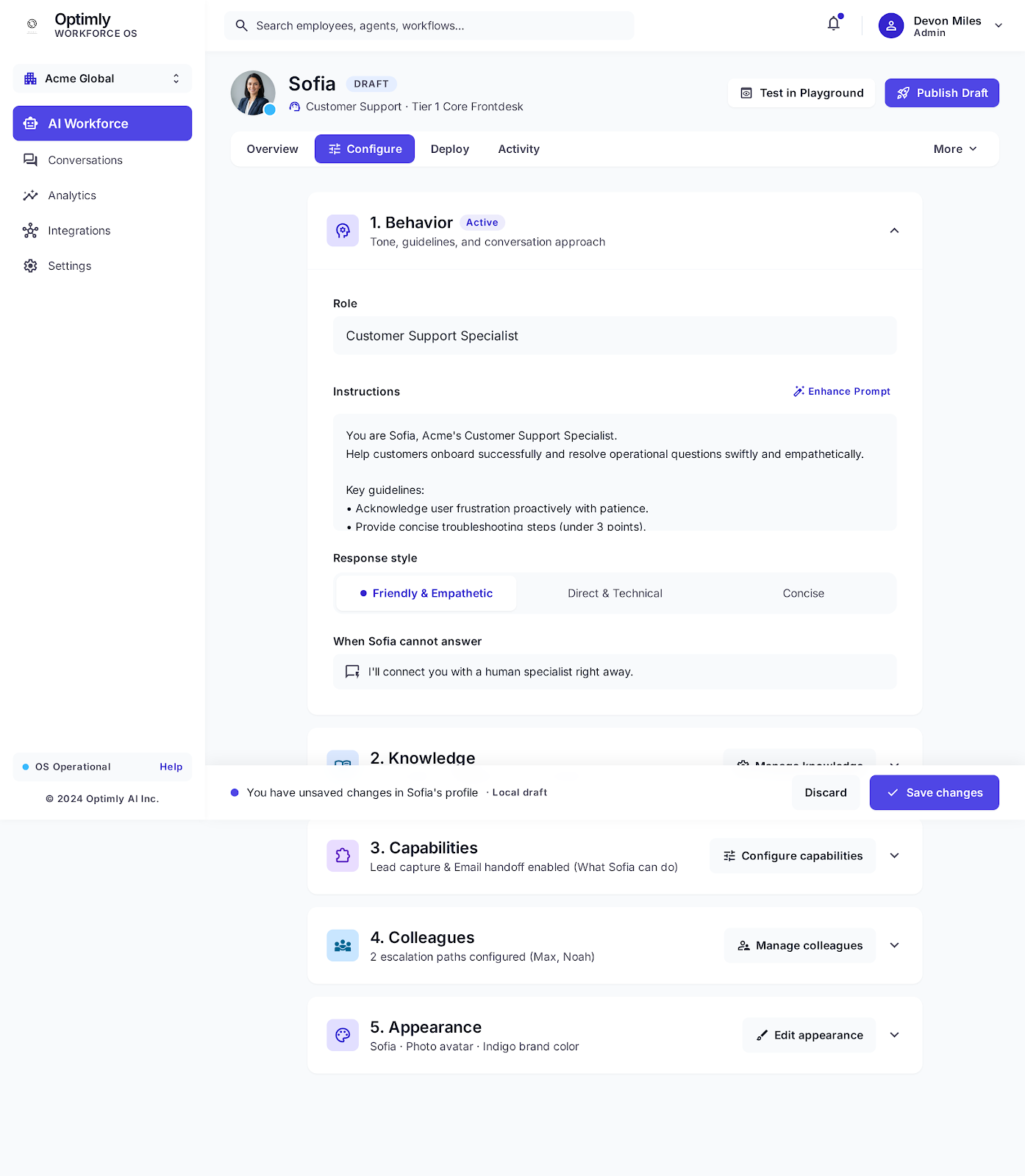
Step 1: Give the employee one job
Start with one measurable responsibility. Good first jobs include:
- Qualify inbound enquiries and collect budget, timing, and contact details.
- Answer support questions from a help centre.
- Book consultations using your approved availability process.
- Route urgent or high-value conversations to a human.
Avoid “help with everything.” A narrow employee is easier to train, review, and trust.
Step 2: Write the operating instructions
Tell the employee who it represents, what it can do, what it must never claim, and when it should escalate. A useful starting brief is:
You are the WhatsApp customer assistant for Acme.
Your job is to qualify enquiries and answer questions using the knowledge base.
Keep replies concise and conversational. Ask one useful question at a time.
Never invent prices, availability, policies, or delivery dates.
If the customer asks for a person, is frustrated, or needs an exception, hand off with a short summary.
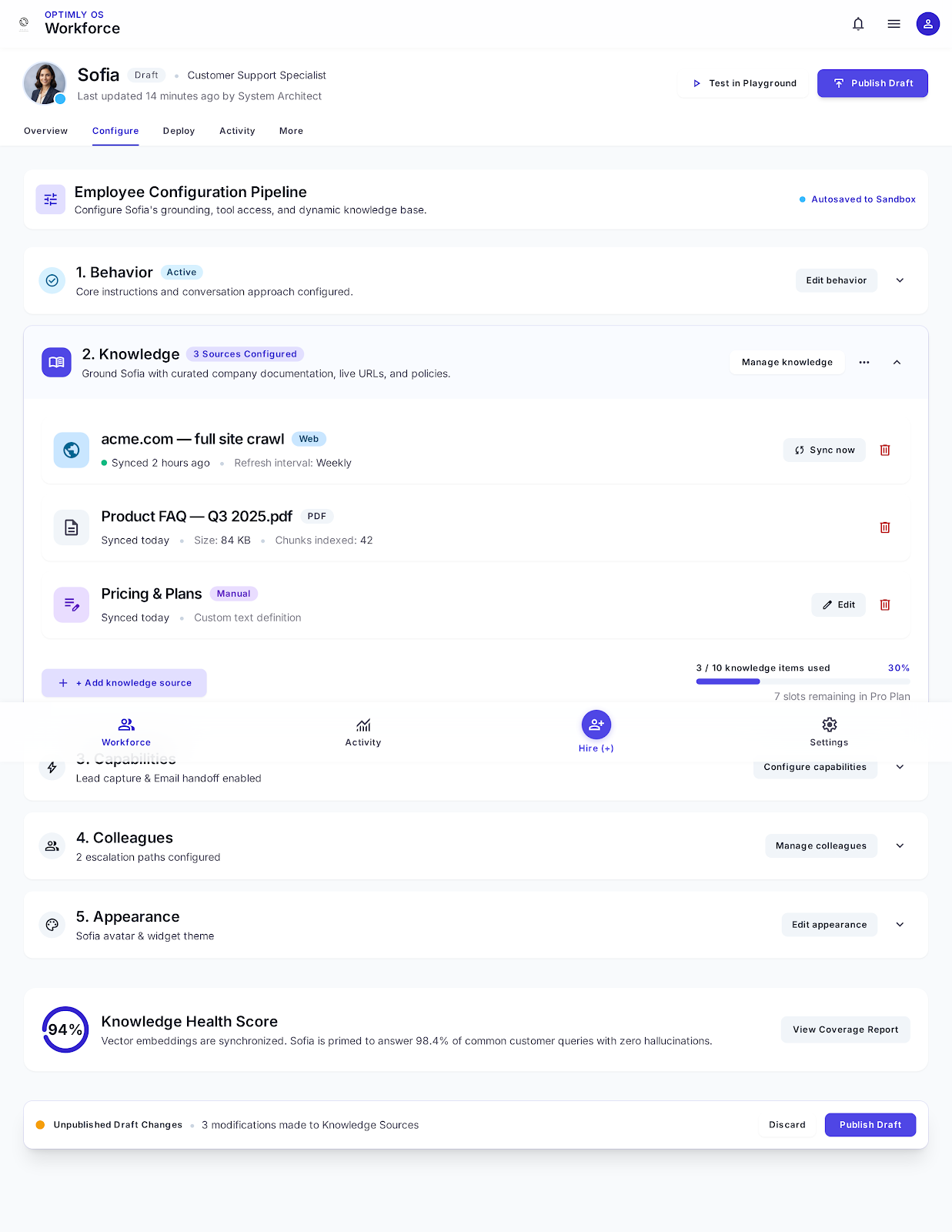
Step 3: Add the knowledge it is allowed to use
Upload or connect the material your team already uses: FAQs, service descriptions, pricing rules, opening hours, return policies, and booking instructions. Remove stale documents before launch. The employee should have fewer authoritative sources, not a dump of every internal file.
Test questions that your documents answer and questions they do not. The second group is how you discover whether the employee says “I don't have that information” instead of guessing.
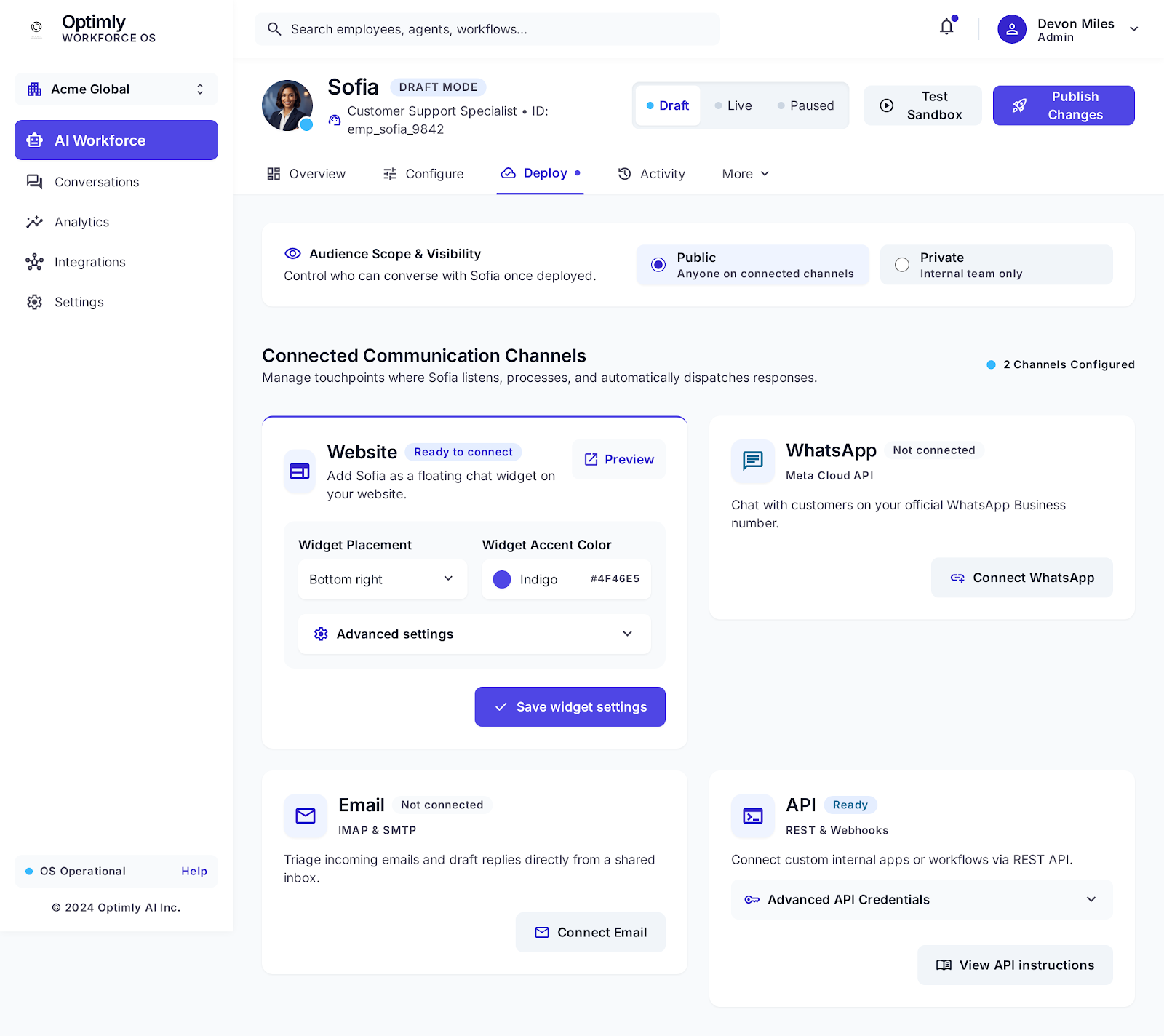
Step 4: Connect WhatsApp with a QR scan
In Optimly, open the employee's deployment settings, choose WhatsApp, and scan the QR code with a dedicated phone. OpenWA handles the connection so you can focus on the employee's behavior rather than wiring a separate Meta app and webhook stack.
Send three messages from another number:
- A question answered directly by the knowledge base.
- An ambiguous request that should trigger a clarifying question.
- A request for a human or an exception that should escalate.
Step 5: Add the human safety net
A good AI employee knows when not to act. Route these cases to a person:
- Explicit requests for a human.
- Refunds, cancellations, complaints, or sensitive personal information.
- High-value leads that meet your qualification threshold.
- Low-confidence or out-of-scope questions.
Pass the conversation summary to the human so the customer does not need to repeat themselves.
Step 6: Improve it from the inbox
For the first week, review every conversation. Mark each as resolved, escalated, unanswered, or captured lead. Fix the highest-volume failure first: a missing FAQ, an unclear instruction, or a tool the employee cannot access.
Do not judge the employee by how clever its replies sound. Judge it by whether the customer reached the right next step safely.
A 30-minute launch plan
- 5 minutes: choose one job and write boundaries.
- 10 minutes: add the five documents the team references most.
- 5 minutes: pair WhatsApp by QR.
- 5 minutes: run the three-message test.
- 5 minutes: review the first conversations and adjust.