Manual Mode: When (and How) to Take Over an AI Conversation

The promise of AI customer support is automation. But the businesses that get the most out of it aren't the ones that automate everything — they're the ones that know exactly when to stop automating.
There's a moment in every great AI deployment where a human needs to step in. A frustrated customer who's been looping through the same answers. A high-value enterprise prospect asking a question that requires judgment. A sensitive complaint that a chatbot should absolutely not handle on its own.
How you handle that moment determines whether your AI support is a competitive advantage or a liability.
This guide covers what Manual Mode is, when to use it, how to execute a clean takeover, and — critically — how to get back out without leaving the customer confused.
What Is Manual Mode?
Manual Mode is the ability for a human agent to take direct, real-time control of an AI conversation already in progress. The AI pauses. The human types. The customer doesn't necessarily know they've been switched — they just experience a more capable, context-aware responder.
It's different from escalation. Escalation typically means routing a conversation to a queue, tagging it for follow-up, or opening a ticket. Manual Mode means you are in the conversation, right now, typing.
The distinction matters because escalation introduces delay. Manual Mode is immediate. For situations where the next message the customer receives will make or break the relationship, immediacy is everything.
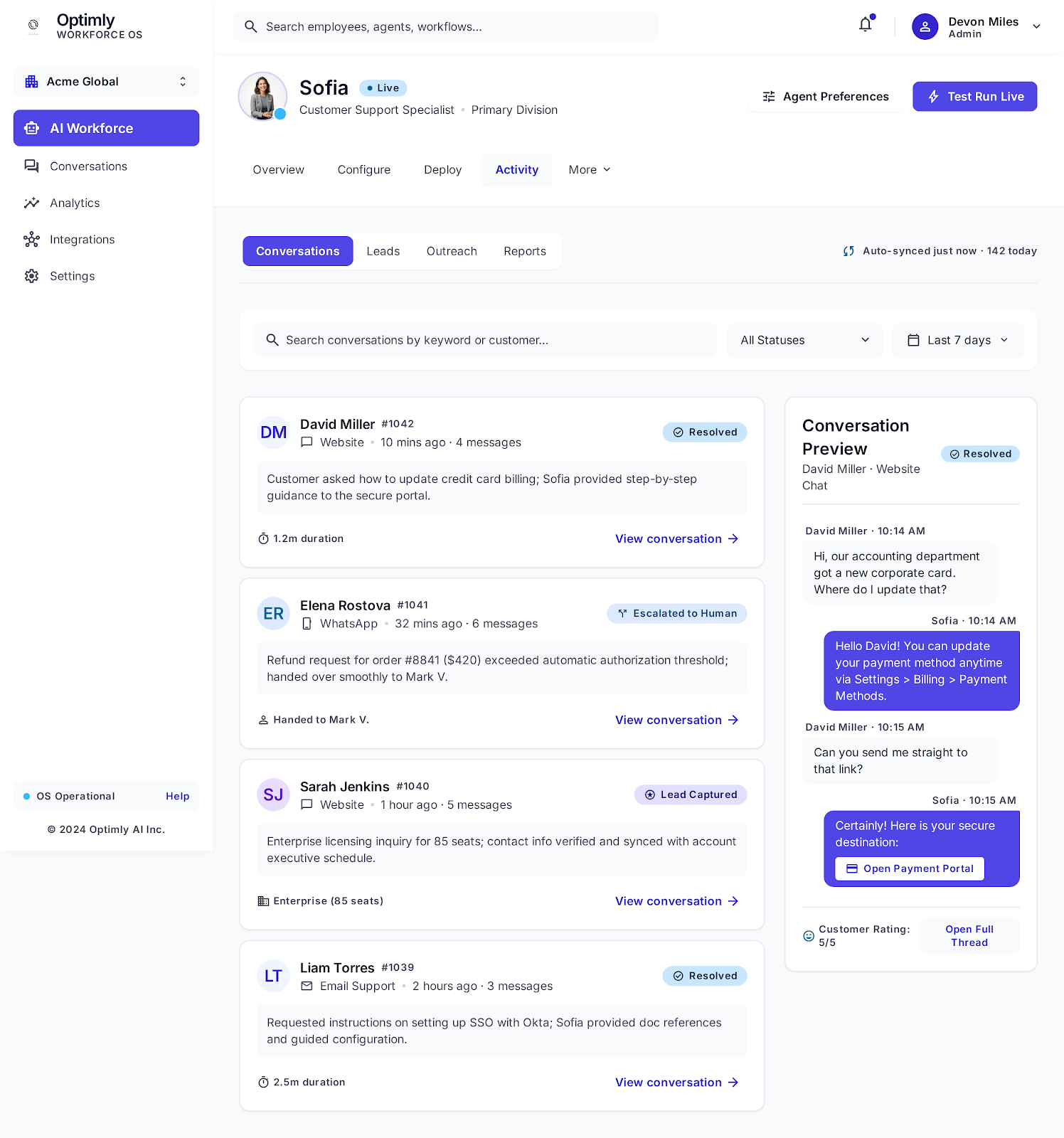
Optimly's activity feed: every conversation Sofia handles is logged with its outcome — Resolved, Escalated to Human, or Lead Captured. Elena Rostova's refund request (conversation #1041, via WhatsApp) shows a clean escalation to Mark V. after exceeding the auto-authorization threshold.
When to Use Manual Mode
Not every imperfect AI response needs a human. You'd burn out your support team instantly trying to babysit every conversation. The goal is to identify the narrow set of situations where human judgment is genuinely irreplaceable.
1. Detected frustration or repeated loops
If a customer has asked the same question three times in five messages, the AI is not getting it done. You're not fixing the conversation by letting it continue — you're eroding trust with every non-answer. Step in.
Modern conversation analytics tools can flag these loops automatically. Frustration signals — repeated questions, messages like "that's not what I asked," short dismissive replies — are detectable patterns that should trigger a real-time alert.
2. High-value accounts
A $50,000 ARR prospect should not be navigating a knowledge base. If your CRM integration identifies an inbound chat as coming from a known enterprise account or a warm lead, that's a trigger for Manual Mode — not because the AI can't answer, but because the relationship warrants it.
3. Sensitive topics the AI is not equipped to handle
Returns involving significant amounts. Complaints that mention lawyers or regulation. Anything involving health, safety, or legal liability. These conversations carry reputational risk that no automated response can fully de-risk.
Your AI agent should be configured to flag these topics immediately and pause pending human review, rather than attempt an answer.
4. Time-sensitive decisions
A customer deciding between you and a competitor, asking for a discount or a custom arrangement, needs a human with authority to offer something real. The AI can buy time — "Let me connect you with someone who can help with that specifically" — but the close requires a person.
5. When the AI has already made a mistake
If you're monitoring live conversations (which you should be, at least on a sampling basis) and you catch the AI giving wrong or outdated information, intervene immediately. Don't let a bad answer sit there while the customer acts on it.
How to Execute a Clean Takeover
The mechanics matter. A clumsy handoff — where the customer suddenly experiences a jarring shift in tone, or worse, is asked to repeat information they already gave — can undo the goodwill you're trying to create.
Step 1: Read the full conversation before typing a word
This sounds obvious. It isn't. The instinct when jumping into a live chat is to announce yourself and ask how you can help. That question tells the customer you haven't read their conversation — and it forces them to start over.
Read everything. Understand the context, the tone, what the customer has already tried, and what the AI has already promised. Your first message should demonstrate that you have the full picture.
Instead of: "Hi there! I'm stepping in to help. What can I assist you with today?"
Try: "I've been following your conversation about the API integration — the issue with the webhook timeout is a known one on our end, and here's what to do..."
Step 2: Acknowledge without over-explaining
You don't need to announce that you're a human or explain the switch unless directly asked. Customers generally don't care about the mechanism — they care about getting their problem solved.
If the AI was visibly struggling, a brief acknowledgment helps: "I want to make sure you get a straight answer on this." That's enough. No apologies, no explanations of how AI works.
Step 3: Resolve or commit
Your job in the Manual Mode window is either to solve the problem directly or to make a clear, specific commitment about what happens next. Vague follow-ups ("I'll look into this and get back to you") are better than nothing, but a specific timeframe and owner is much better.
"I'm going to check with our engineering team and come back to you by 3pm EST today. I'll DM you directly." That's a commitment the customer can hold you to — which is why it works.
Step 4: Hand back gracefully (or don't)
After resolving the immediate issue, you have a choice: hand control back to the AI agent, or close the conversation as a human.
For single-issue support questions, handing back is fine — the AI can handle follow-ups, wrap-up messages, CSAT surveys, and knowledge base suggestions. For ongoing, relationship-sensitive accounts, keep it human for that session. Let the AI resume the next time they return.
The preview panel opens inline on the right — the full thread, message by message, with timestamps. Any agent can read everything before typing a word. David Miller's billing session: resolved in 4 messages, rated 5/5.
What Good Manual Mode Analytics Looks Like
Manual Mode generates some of your most actionable data — if you instrument it correctly.
Track why you intervene. Every time an agent jumps into Manual Mode, that reason should be logged. "Repeated question" vs. "high-value prospect" vs. "AI error" are very different signals that require very different fixes.
Measure resolution rate from Manual Mode. Are conversations that get a human takeover actually resolving better? If your Manual Mode resolution rate isn't meaningfully higher than the AI's, either your agents aren't adding value, or they're taking over conversations they didn't need to.
Watch for patterns in what triggers takeovers. If 40% of your Manual Mode interventions are about the same topic — say, refund policy or pricing on a specific plan — that's a knowledge base gap, not a staffing problem. Fix the AI's knowledge, reduce the Manual Mode interventions, and free your agents for genuinely complex work.
Time-to-takeover. How quickly do agents respond when an alert fires? Conversations where it takes more than five minutes for a human to step in after a frustration signal have a much higher abandonment rate. This is a staffing and process problem that analytics can surface.
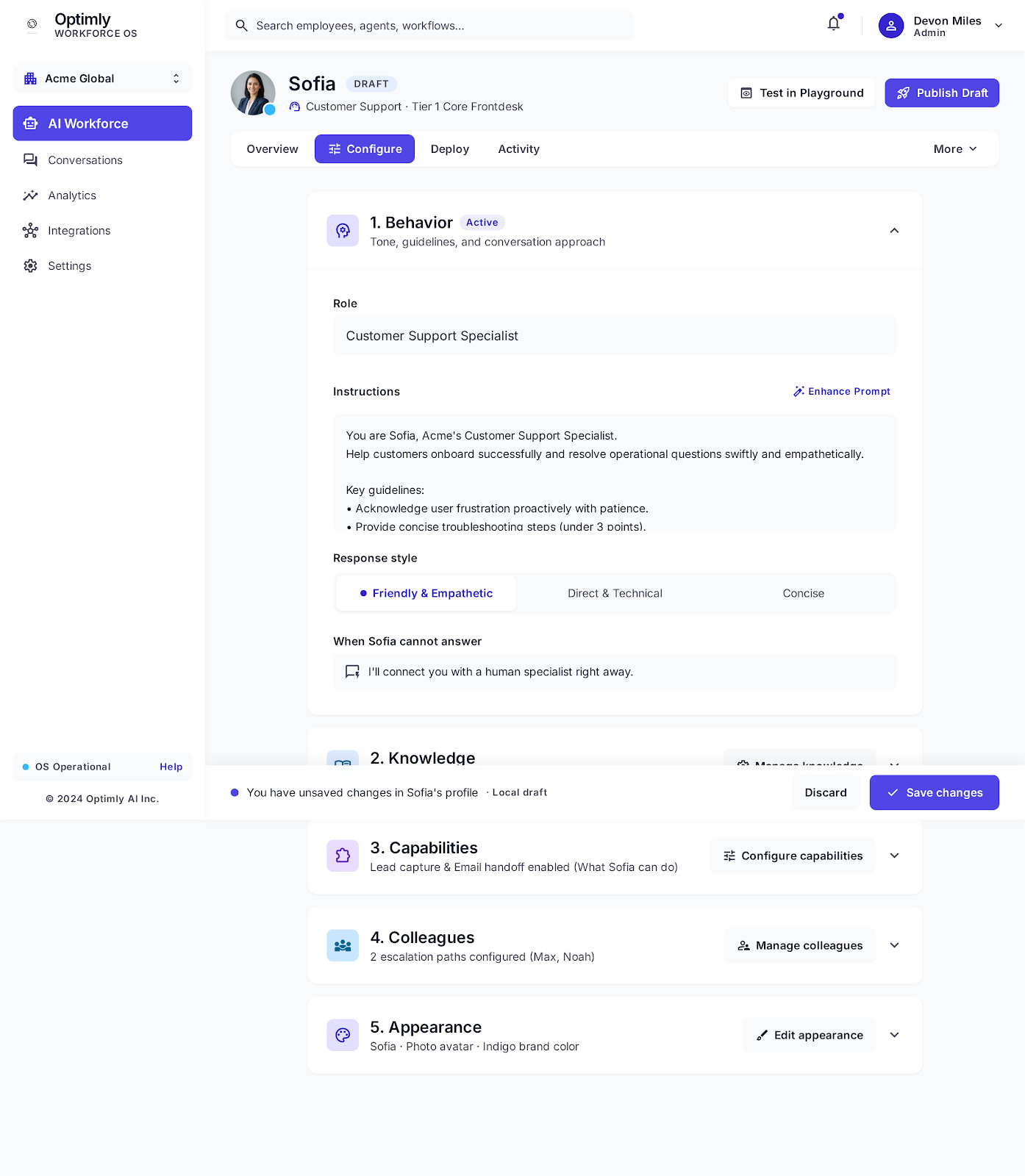
Sofia's Configure tab: the Colleagues section shows 2 escalation paths (Max and Noah) configured for different handoff scenarios. The fallback message in the Behavior section — "I'll connect you with a human specialist right away" — is the bridge between AI response and human takeover.
The Organizational Question: Who Watches the Conversations?
Manual Mode is only as good as the team behind it. If no one is watching the conversation feed, the best escalation detection in the world doesn't matter.
Most teams handle this one of three ways:
Dedicated conversation monitors. A small team whose explicit job is to watch the live feed and intervene as needed. This works well at scale and produces faster response times, but it's a real headcount investment.
Agent-side alerts. Support agents work their normal queue, but receive real-time push notifications when the monitoring system detects a conversation that needs intervention. This is the most common approach for mid-size teams — low overhead, manageable distraction.
Async review with flagging. Conversations are flagged for review after the fact rather than in real time. Not true Manual Mode — more of an escalation to a follow-up — but appropriate for lower-urgency contexts where immediate intervention isn't critical.
The right answer depends on your volume, your customer profile, and the cost of a bad conversation. For enterprise B2B, real-time monitoring is almost always worth it. For high-volume e-commerce, async flagging may be sufficient for most cases, with dedicated monitoring during peak hours.
Setting Up Manual Mode Triggers: A Practical Checklist
Before your team goes live with a monitored AI deployment, configure these triggers:
- Frustration keywords: Specific phrases like "this isn't helping," "I already said," "forget it," "I want to speak to a human," "this is ridiculous"
- Repetition detection: Same semantic question asked 2+ times within a session
- High-value account detection: CRM integration that flags known accounts above a revenue threshold
- Sensitive topic detection: Legal terms, refund amounts above a threshold, health-related queries, competitor mentions
- Session length threshold: Conversations over X minutes with no clear resolution signal
- Explicit escalation request: Any form of "speak to a human" or "real person" or "agent" → immediate human alert, no exceptions
The goal isn't to maximize the number of Manual Mode interventions — it's to minimize the number of situations where one was needed and didn't happen.
The Mindset Shift: AI Handles Volume, Humans Handle Moments
The framing that makes Manual Mode work organizationally is this: your AI agent is not trying to replace your support team. It's handling the high-volume, repeatable, resolvable 80–90% so your team can focus entirely on the moments that matter.
Manual Mode is what makes that division of labor explicit. It's the mechanism through which your team says: "This moment matters. I'm taking it."
Used well, it creates a customer experience that no fully-automated system can replicate and no fully-human team can scale to. The AI does the heavy lifting. The humans show up when it counts.
That's not a compromise. That's the strategy.
Getting Started with Manual Mode in Optimly
In Optimly, Manual Mode is available on every active conversation. From the conversation dashboard, any team member with agent access can:
- Click Take Over on any active conversation
- See the full AI-generated history inline
- Type directly into the conversation — the customer receives messages from the same interface, seamlessly
- Optionally add an internal note to log the reason for intervention (surfaced in analytics)
- Click Resume AI to hand control back when the issue is resolved
Alerts for monitored triggers can be configured in Agent Settings → Escalation Rules, and real-time notifications are available via the dashboard, email, or Slack integration.
The Configure tab in one view: behavior, knowledge, capabilities, colleagues, and appearance — all the levers that determine how Sofia handles a conversation and what happens when she can't.
If you're not yet running Manual Mode monitoring on your AI deployment, you're flying blind on the 10% of conversations that matter most. It's worth setting up before your next high-value customer hits a wall.
Have a question about configuring Manual Mode or escalation rules for your specific use case? Talk to us — or, appropriately enough, start a conversation with our AI agent and we'll jump in when it counts.