Usage & Limits
Optimly tracks four metrics against your plan. You can check your current usage at any time from Settings → Usage.
What's tracked
Monthly messages
Every message your AI employees send counts against your monthly message quota. This includes:
- Responses to customers on the website widget
- WhatsApp replies
- Email replies
- API responses
Incoming customer messages do not count.
What happens when you hit the limit: Your employees stop responding automatically. Conversations are still recorded, but no AI replies are sent until the next billing cycle or until you upgrade.
Knowledge items
Each document, URL, or text block you add to an employee's knowledge base counts as one knowledge item. The limit applies per employee, not across your entire account.
What happens when you hit the limit: You'll see a 403 error when trying to add more knowledge. Remove unused sources or upgrade your plan.
Total AI employees
The number of AI employees you can have active (Draft + Live + Paused combined). Creating a new employee when you're at the limit is blocked.
Total messages stored
The number of conversation messages stored in your account history. Older messages may be archived or deleted when this limit is reached, depending on your plan.
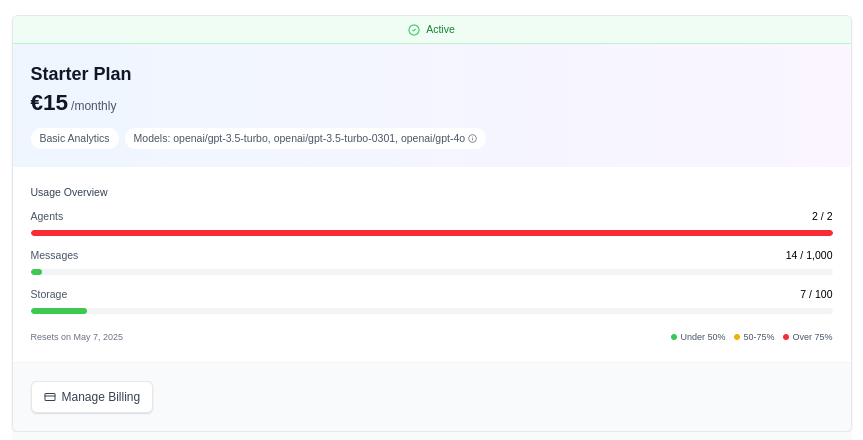
Check your usage
- Go to Settings in the left sidebar
- Open the Usage tab
You'll see a live bar for each metric showing current usage vs. your plan limit.
Need more?
If you're approaching a limit, you have two options:
- Upgrade your plan — go to Settings → Billing to see available plans
- Reduce usage — archive unused employees, remove stale knowledge sources, or export and delete old conversations