Subscription
Learn how to manage your subscription, update your billing information, and control your payment methods in Optimly.
Update Your Payment Method
Optimly uses Stripe as its secure payment processor. You can update your billing information at any time through your dashboard.
Step-by-Step Guide
1. Access Billing Settings
Go to your Optimly dashboard, click on Settings in the left sidebar, then open the Billing tab to view your current subscription details.
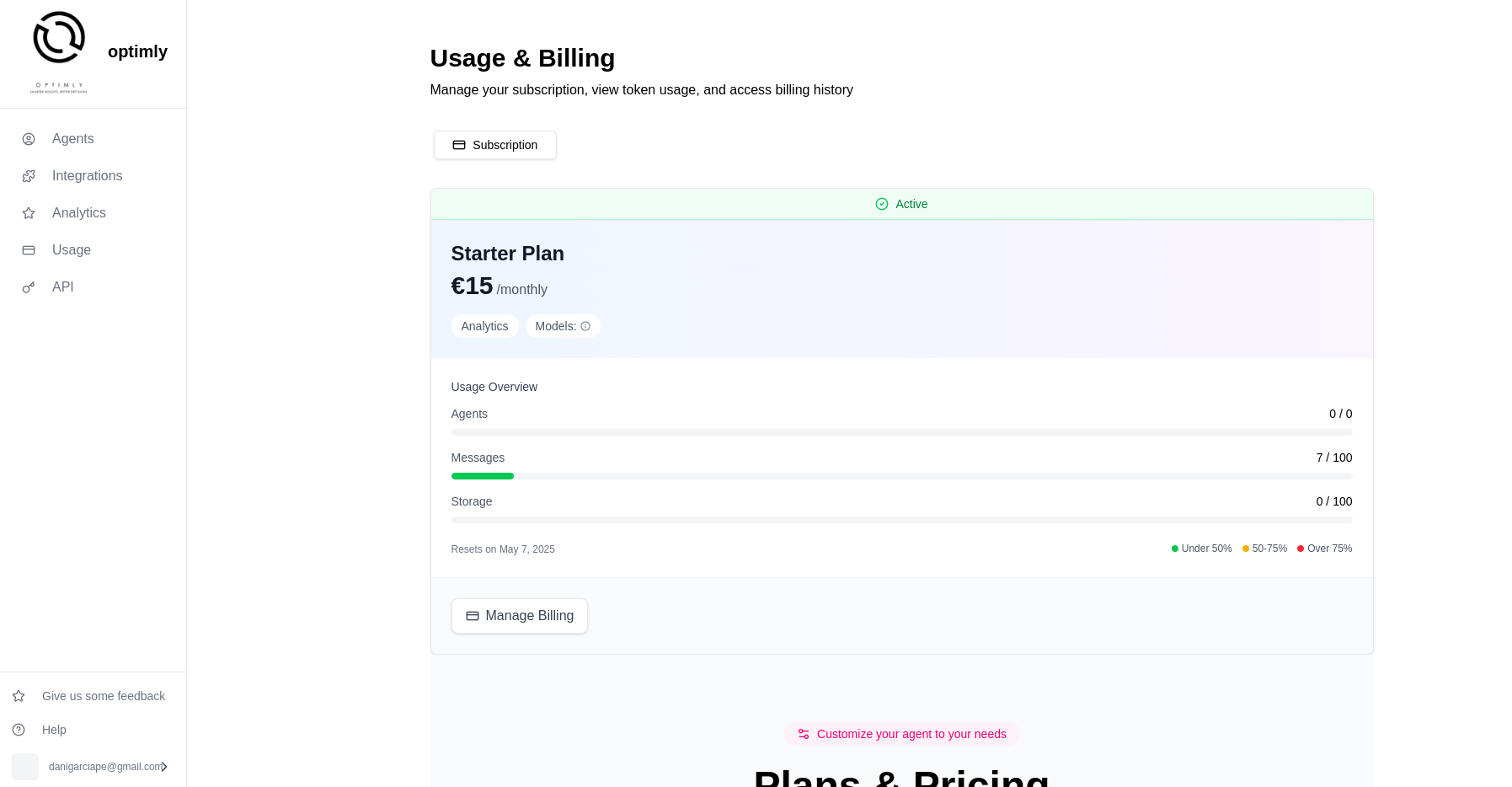
2. Update Subscription
From the Billing tab, click the Update subscription button. This will open a secure Stripe-hosted form to manage your payment details.
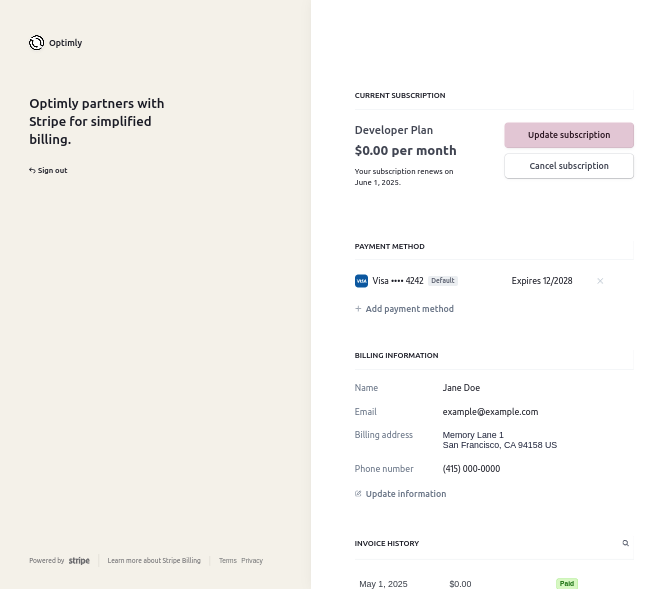
3. Add a New Payment Method
Enter your credit card information in the form provided. You can add multiple payment methods if desired.
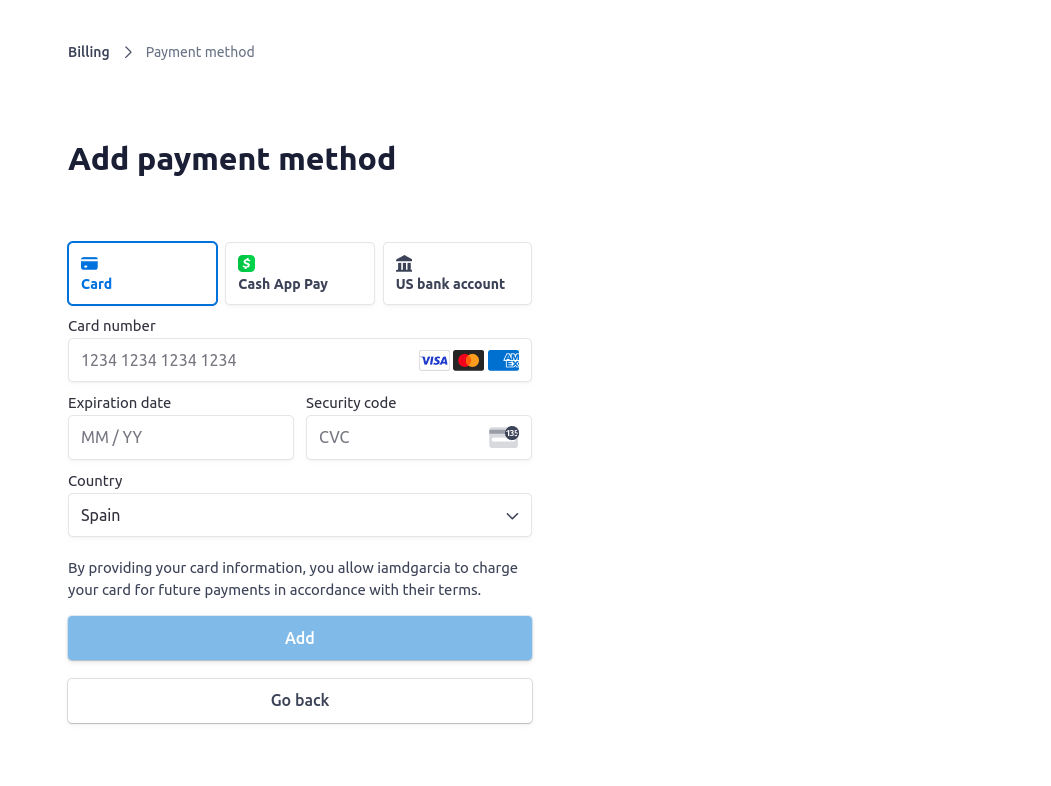
4. Set a Default Payment Method
To ensure your new card is used for future payments, check the box labeled Use as default payment method before clicking Add.
Important Notes
- All payments are processed securely via Stripe.
- You can store and manage multiple payment methods.
- Your default method will be used automatically for each billing cycle.
- Changes made in the billing settings take effect immediately.
Need help with billing or invoices? Contact us at contact@optimly.io.