Adding Knowledge Sources
Knowledge lives inside each AI employee, inside the Configure tab → 2. Knowledge section. There is no separate top-level Knowledge page — each employee has its own knowledge base.
How to add a source
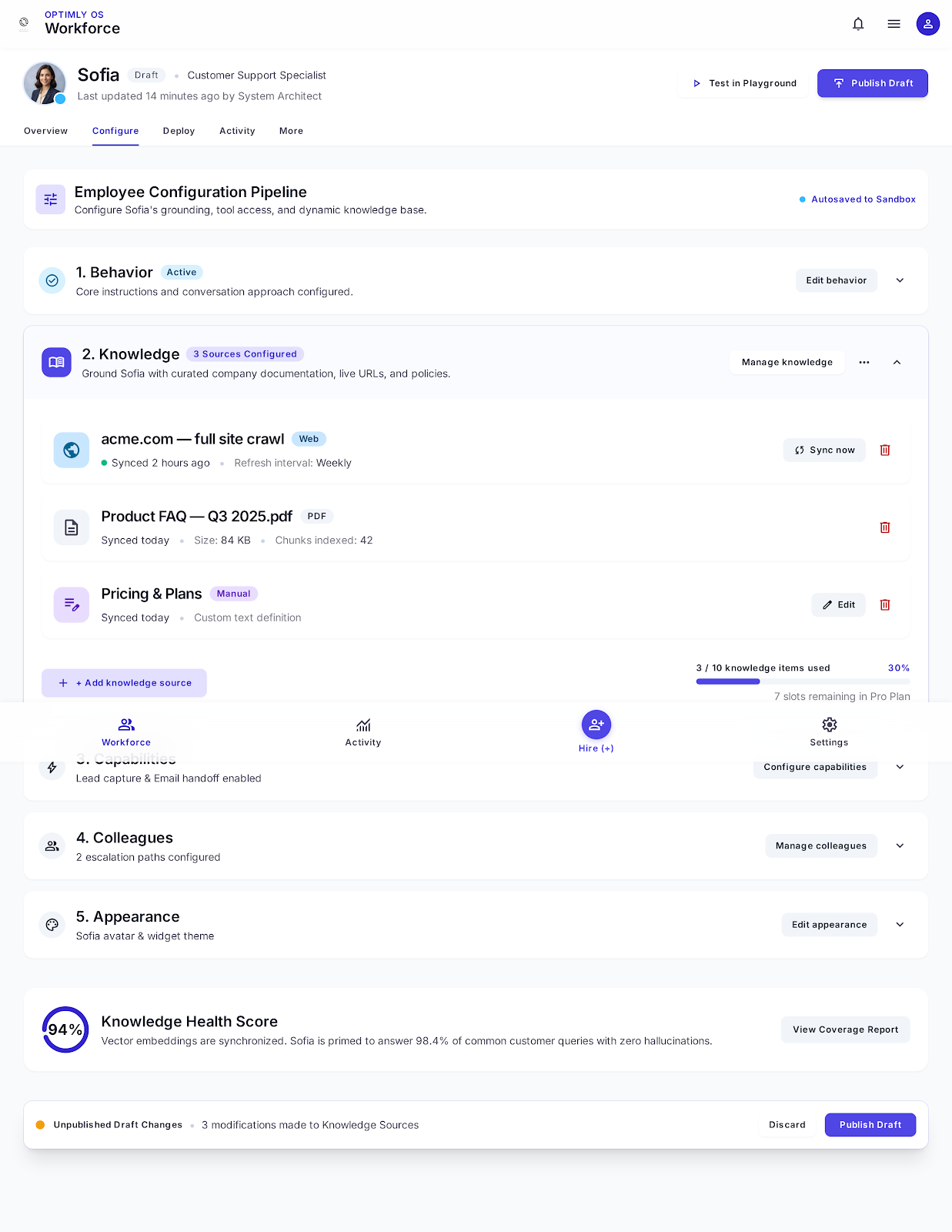
- Open your AI employee
- Click the Configure tab
- Find 2. Knowledge and click Manage knowledge
- Click Add knowledge source and choose a type
Supported source types
Documents
Upload files directly from your computer.
| Format | Notes |
|---|---|
| Best for policies, guides, brochures. Text must be selectable — scanned PDFs without OCR won't parse well. | |
| DOCX | Word documents, reports, handbooks |
| TXT | Plain text, paste-exported content, raw FAQs |
| XLSX | Spreadsheets (parsed as structured text) |
Limit: Up to 5 files per upload. Text must be selectable in PDFs.
Website
Enter a URL and Optimly crawls the page (or the full site) and indexes the content.
| Option | What it does |
|---|---|
| Single page | Indexes one URL only |
| Full site crawl | Follows internal links from the root URL and indexes all pages found |
Best for: product pages, help centers, FAQs, pricing pages. The employee will cite content from these pages when answering.
If you already have a /help or /faq section on your site, crawling it is the fastest way to get a well-informed employee.
Manual text
Paste content directly — no file needed.
Good for:
- FAQs you haven't published anywhere
- Internal policies you don't want to upload as a document
- Quick one-off answers you want the employee to know
Give each text source a descriptive name (e.g. "Refund policy", "Pricing as of Q3 2025") so you can identify and update it later.
Cloud sources (paid plans)
| Provider | What it syncs |
|---|---|
| Google Drive | Documents and folders from your Drive |
| Notion | Pages and databases |
| YouTube | Video transcripts (auto-transcribed) |
Cloud sources can be set to auto-refresh on a schedule — useful for content that changes frequently.
Restrict responses to knowledge
By default, your employee can answer from both its knowledge base and its general AI training. To make it answer only from uploaded content:
- Open your employee → Configure tab
- Go to 1. Behavior
- Enable Restrict responses to knowledge
When this is on, the employee uses the fallback message (set in Behavior) if it can't find an answer in the knowledge base.
Knowledge quotas
Your plan defines how many knowledge items each employee can have. Check Settings → Usage to see your current count. When the limit is reached, adding more sources returns a 403 error.
Related
→ Knowledge templates — copy-paste templates by industry
→ Configuration reference — all Configure tab settings